An artists journey

Tag: photographic technology

  • Going too far

    Going too far

    We often hear this as a challenge or criticism. “You’re going too far” Meaning, back off. But as an artist, I don’t think I go far enough. I need to push myself to be always going too far. That is how we explore the limits

    Too timid

    I have written about this before, but it is so important I think it deserves a refresh. In a previous article I encouraged us to go “far enough“. But I think now this is too timid an attitude. We should push “it”, whatever it is, too far.

    I know I tend to have too much focus on the actual captured data of the file and what the scene really looked like. Time helps. I tend now to wait to process images until they have aged enough to let me distance myself from the experience of being there.

    But still, I tend to hold back and stay too true to the original. I am learning to push beyond to create something else.

    As a bonus, this short video by Matt Kloskowski might encourage you to think about editing in new ways. He does not talk much about going too far, but he shows an unconventional approach. The kind of thing I am talking about when I recommend pushing beyond the captured data.

    Push it

    I know I’ve said it before, but I find truth in something John Paul Caponigro said β€œYou don’t know you’ve gone far enough until you’ve gone too far.”

    This is something I need to take to heart. The engineer in me tends to make the image look like the literal, original scene. That ends up creating record shots. Sometimes all I need is a record shot, but that is rare. I have to push it more to make the image into art. Into something interesting that goes beyond the original.

    For example, I live in Colorado. If I shoot a beautiful scene in the mountains, so what? Anyone could have stopped there that day and taken the same picture with their cell phone. What sets mine apart? It often will be something more than just the literal scene. It has to rely on my interpretation of what I saw.

    Be decisively indecisive

    So when I suggest going too far, I am not speaking about relationships or physical safety, but my interpretation of the image. I am discovering more and more with time that images can take a great deal of manipulation.

    A raw file from a good camera contains a tremendous amount of data that can be exploited. Editing in Lightroom is completely non-destructive. We can re-edit at will with absolutely no loss. Likewise, although Photoshop is inherently destructive, there are processing techniques that can be used to manipulate images with no damage and with the ability to re-edit in the future. I strongly advise learning and adopting these techniques.

    Yes, I know of good artists who can say they know exactly what they want to do with an image and it is OK to do destructive edits, because they will never change their mind in the future. That is not me. Every time I revisit an image I usually tweak it some. Sometimes a lot.

    Does that mean I am indecisive? Perhaps. I wouldn’t argue the point. I look at it as an evolving artistic judgment. What I see and feel in an image can change over time. So I consciously decide to use techniques to give me the maximum flexibility to change my mind later. Decisively indecisive.

    Don’t worry about breaking it

    Let me use Lightroom (“Classic”, because I consider it the only real Lightroom) as an example. I said that all editing in Lightroom is non-destructive. Do you really understand that?

    Lightroom uses a marvelous design that always preserves the original data unchanged and keeps all edits as a separate set of processing instructions. Don’t believe me? Here is a portion of actual data from the XMP sidecar file of an image I edited today:

    crs:WhiteBalance=”As Shot”
    crs:Temperature=”5650″
    crs:Tint=”-14″
    crs:Exposure2012=”+0.50″
    crs:Contrast2012=”+6″
    crs:Highlights2012=”+19″
    crs:Shadows2012=”0″
    crs:Whites2012=”0″
    crs:Blacks2012=”-12″
    crs:Texture=”0″
    crs:Clarity2012=”+20″
    crs:Dehaze=”0″
    crs:Vibrance=”+5″
    crs:Saturation=”0″

    If you are familiar with Lightroom, you should recognize these adjustments as the contents of the Basic adjustment panel. I’m not sure what the “2012” suffix means on them, but probably a process version. Anyway, this is literal data copied from the XMP file. It is an industry standard format called XML markup. It is just text. If I change a slider, the text value is changed. These text values are read and re-applied when I open the file in Lightroom. The original pixel data is never altered. You cannot destroy the image by editing it in Lightroom.

    What are the limits?

    There are limits, but not absolutes. If we boost the exposure too much, at some point we will introduce an unacceptable amount of noise. If we sharpen too much we will introduce artifacts around edges. We can make such a high contrast image that it cannot reproduce properly on screen or in print. We can increase saturation to the point that it is out of gamut for the screen or print.

    Most of these are sort of a judgment call by the artist of what the acceptable limit is for the intended application.

    But these are just physical limits of what we can do with the tools. The bigger problem, at least for me, is what am I willing to do?

    It’s our mindset we need to break

    I am the one who usually limits the extents of the changes I will make. I am still too much of a left-brained engineer who is constrained by my memory of what the scene actually looked like.

    One way I can tell this is happening is that it is common for me to push an image further every time I revisit it. Upon seeing it again, I think,”that is nice, but I can go further”. And I do. Sometimes the image turns into something different from what I shot. I love it when that happens.

    But it is a constant struggle to give myself permission to do it. I am afraid of going too far.

    Knowing how the tools work and how to non-destructively edit, I should feel free to slam adjustments to the limits just to see what happens. Then back off to the “right” value for the image. I find that the “right” value tends to be higher if I have over-corrected than it is if I come up from the original. I think this is what Mr. Caponigro means when he says β€œYou don’t know you’ve gone far enough until you’ve gone too far.”

    Give yourself the freedom to go too far, than back off as necessary. I will try to do the same.

    Not for everyone

    I know this advice is not for everyone. I still see photographers who say they pride themselves in getting the image “right” in camera and doing minimal editing. That’s their style and their values, so good for them. But if “right” means the closest match possible to the real scene, that seems very limiting. I think we have progressed well beyond the stage of assuming that a photography must be a true representation of reality.

    At least, that is my assumption. I operate from the point of view that I am as free to creatively imagine the contents of my frame as a painter is to create on a blank canvas. Even plein air painters take a lot of liberties with what they choose to include or exclude, what colors to use, etc. Some even use the plein air session as a sketch. Later in the studio they refine and complete it according to their interpretation.

    That is basically what I do. Some images require more interpretation than others, and my tools allow more freedom for manipulation. One reason I think I could never paint is there is no “undo” with paint. πŸ™‚

    Go too far

    So I am discovering that what works for me is to consciously push my adjustments beyond what I first think is right. Yes, it may create a bizarre effect and I have to back it off. But I often find that the new setting I back it off to is more extreme than I thought was correct originally. Seeing the extreme helped me understand a new way to view the image.

    If you do it right, you can’t damage the image. Give yourself permission to experiment.

    Example

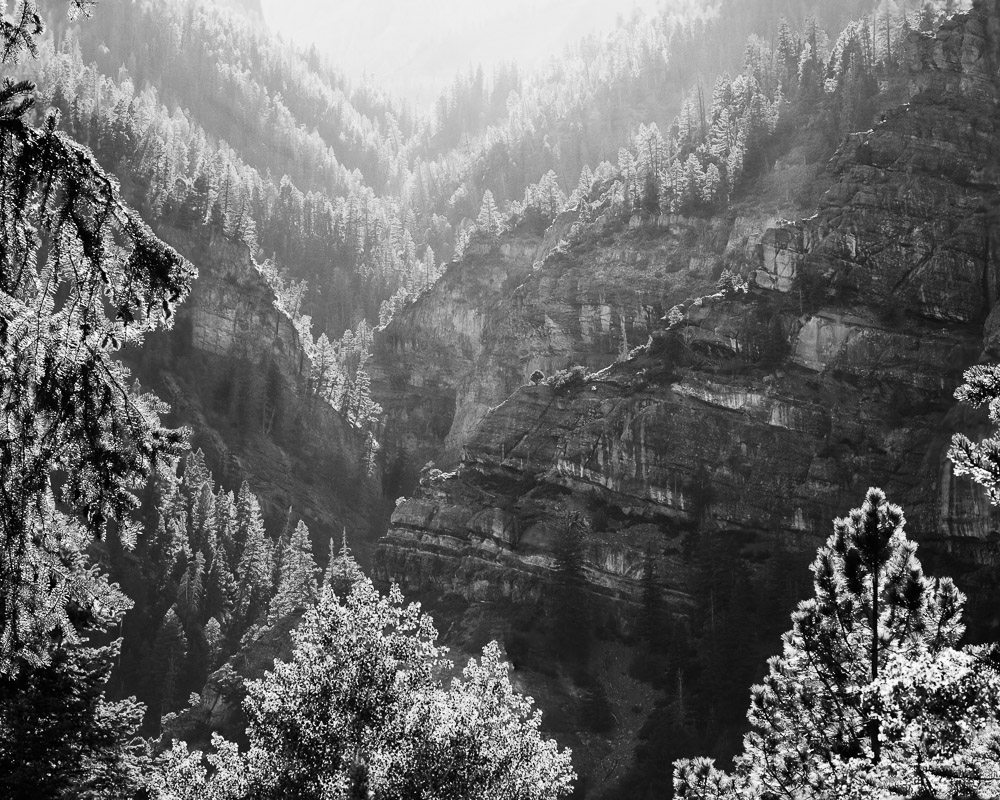
    The image with this article is an example. This is the mountains and plains about 5 miles from my home. It seems like every time I go back to the image, I need to tweak it a little. And I always push it a little further. I do not back off of what I already did. I think I am nearly to “far enough”.

  • It’s Just Data

    It’s Just Data

    Digital images are just data, pixels, digital values. Yes, but… That’s like saying paintings are just pigment smeared on canvas. It can become something more.

    It’s data

    Every digital image is data. I won’t go into film. It is the same but different. But a piece of exposed film is just data, too.

    What comes off my sensor is a rectangular array of pixel values, red, green, and blue tuples. Tuple is just a mathematical term for a small set of numbers you keep together and in order. In this case (red value, green value, blue value). This is just numbers. Data.

    When this data is brought into my computer it is still data. The manipulations I do on it in Lightroom and/or Photoshop are mathematical operations. Things computers are good at dealing with. An image may be gigabytes in size, but it is still nothing more than data.

    Data just is. It doesn’t mean anything.

    Interpreted by our minds

    When the data is displayed on screen, I can view it and interpret it as something. This is the key. It means nothing until a human interprets it.

    A particular set of contrasting tones and colors in a region looks like a tree to me. Even if the computer uses an AI classifier to identify it as a tree, that is just a meaningless label to it. The computer does not know what a tree is. An image of a tree cannot invoke memory or symbolism or meaning in the computer. It can in our minds.

    So the data we see on screen, that is just variations of intensity and color, becomes meaningful to us because we are human. The data itself does not encode hope or despair or memories or associations or pain or beauty. That is what we make of the data.

    The pen

    There is an old expression that says “the pen is mightier than the sword.” This is true, but unpack it a little. A literal pen (do you remember what those are?) is not stronger or more forceful that a literal sword. The expression is metaphorical. The force of words conveyed to people’s minds can do more than the threats of swords can.

    This is the case with images. The data making up the image means little. What we interpret from the data when we view it is everything.

    I do not get political in this blog, but from a sociological interest, the protests going on in China (as I write this) are fascinating. Censorship is so strict that the symbol of the protests is a blank piece of paper, representing that they can’t say anything. From an engineering point of view, the amount of “data” in a blank sheet of paper is zero. It is the meaning ascribed to it that makes it powerful. An empty of paper can say volumes.

    What elevates some?

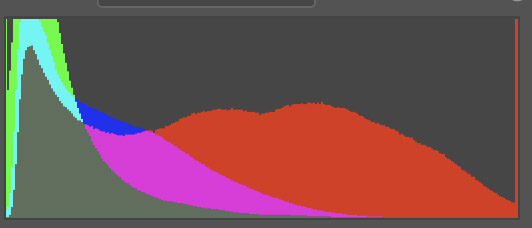
    Back on track, how is it that some data creates a far different effect than others? It’s much more than just the data. For example, here are 2 histograms. This is important data about the color information and distribution of pixels in each image.

    Mona Lisa histogram Random flower image histogram

    Their shapes are not that different. The one on the left has more warm dark tones and is darker overall. The one on the right has a lot of bright reds. Both have a red spike at the high end. But these are just 2 sets of data.

    Would it make a difference if I told you the left histogram is the Mona Lisa and the right one is a random flower image from my reject bin?

    So we cannot take an engineering view of the data to infer the value or user reaction. Our human perception makes all the difference.

    More than data

    The famous photographer Edward Weston once said: β€œThis then: to photograph a rock, have it look like a rock, but be more than a rock.” It is a little bit of a stretch, but I don’t think it breaks badly to say when we press the shutter, we collect data, but it is more than data.

    We could look at the data as an engineer and analyze histograms, tonal distributions, edges, area balances, and 100 other parameters. I know. I have. But my conclusion is that matters little. It gives us ways to describe the superficial data, but it says almost nothing about what the image means to us as humans.

    So what?

    I think we always have to ask “so what?” when we learn something new. Let me share 2 takeaways I get from this.

    The first is that the data doesn’t care. I spent years trying to optimize the perfect histogram, ensuring total, crisp sharpness, capturing and preserving perfect color balance. At this point in my journey I will say that none of that really matters. All that matters is the effect I bring to myself and my viewers. Is it pleasing? Does it make us think? Is there a larger idea behind the surface scene?

    The second takeaway is even harder for me to really grasp. It is just data, and the numbers don’t really matter. This means that what the original scene looked like (the captured data) should have little bearing on what we do with it. Process the data as much as necessary to create a great image. I need to stop being limited in my thinking by the reality I started with.

    If it was an average, sunny scene but I feel it should be dark and moody, fine. If it was a colorful scene but I feel it should be presented in black & white, fine. Crop it. Add texture. The original data should not limit our artistic interpretation. This is one reason I often find it valuable to let images “age” a bit before I process them. I loose much of the association to the real scene and can take a more artistic view of the result I want.

    Today’s image

    I love this image and this place (Ouray Colorado). The sunset was almost blown out from a haze of wildfire smoke. Contrast was challenging. But I had to get something. It was too beautiful to stand idly by.

    Besides B&W conversion and cropping it, the pixels have been bent quite a bit. The image is a couple of years old. I find that every time I go back to it I push it a little more to the extreme. Each time I do, it becomes a little more what I remember of the event. The less I remember the actual original scene, the more I feel free to make it match what I felt.

  • Dodging and Burning

    Dodging and Burning

    I have mentioned dodging and burning before, but usually in the context of black & white images. Dodging and burning is much more general than that these days. They are techniques that should be known by all photographers.

    History

    We usually think of dodging and burning as something associated with black & white photography. This is because this is where they were invented and first applied. Ansel Adams and the masters before him used dodging and burning extensively to achieve the artistic look they wanted.

    The technique has its roots in the chemical darkroom. Photographers discovered that during the sometimes minutes long exposure of a print, they could change the tonal values of the print by withholding or adding light to selected areas.

    Remember that these black & white processes were built around negatives. That is, on the print material, the more light it receives the darker the area is and the less light it receives, the lighter it it. In the limit no light at all will give the white base of the paper.

    Hence the origins of the names. The printer (a person creating a darkroom print) might use a small tool, usually a circular or oval shaped piece of paper on a stick, to shield a region from some of the light. This holding back some light was called dodging. It made the dodged region of the print lighter. The printer could also add light to a region, usually by cutting a small hole in a sheet of paper and using it to shield everything except the hole from the light. This was called burning. It made the region receiving extra light darker.

    In today’s digital processing, the terms are archaic. I remember them by thinking that burning sounds like it would make it darker. They might better be called just lightening and darkening. In my LIghtroom process, I call these layers just “light” and “dark”.

    What are they now?

    In the more general sense, dodging and burning are a means of selectively changing the tonal intensities or other properties of regions of an image. We can do this in great detail now and it is not at all limited to black & white images.

    I am fairly confident in saying that all images you see a professional fine art photographer print use dodging and burning. The artist may spend hours tweaking the relationships. It is so easy now and we have so much control relative to the chemical darkroom days that it would almost be foolish not to. It would be passing up a great opportunity to enhance the visual experience for your viewers.

    Digital post processing

    Virtually all software tools that photographers use have the ability to selectively adjust tones in regions. The different tools may use their own names for it, but they all do about the same thing. I will discuss Lightroom Classic and Photoshop since I am familiar with them.

    Since we edit on a computer using software tools, we are no longer limited to it being a real-time “performance” in the darkroom. Artists back in the day had to repeat the lengthy dodging and burning process for each print. Now we can do it once to create our “digital negative”. Editing becomes a pleasant creative process we can enjoy in our office with a nice glass of wine and some relaxing music playing.

    And because we are no longer limited to black and white and chemical processes, the range of what we can adjust is greatly increased. We use the same techniques to selectively adjust colors and sharpness and contrast. It is even almost trivial to remove distracting elements.

    It’s a great time to be to be a photographer!

    Lightroom Classic

    Ah, a marketing blunder by Adobe. Renaming “Lightoom” to “Lightroom Classic” was an affront to photographers and a thinly disguised attempt to push most users to the (reduced capability) online version. Thanks. Now that I have that off my chest let me just say that I will call the product just “Lightroom”. Know that I mean the desktop version where I have all my images stored locally.

    That out of the way, Lightroom is a fantastic product that is vitally important to a large percentage of photographers. It is where we store and catalog and search for and edit our image library.

    In addition to everything else it does, Lightroom has very capable dodge and burn tools and they are being enhanced all the time. At the time I am writing this, Lightroom version 12 was just released. It adds some significant new features.

    Lightoom has several selection tools for dodging and burning and general editing. They are called the linear gradient, the radial gradient, the brush, and color and luminence range. In addition, there are “AI-based” features to aid in selecting the sky, the subject, people, and objects.

    The purpose of all these tools is to select a certain region of an image to modify. Once we have a selection there is a range of editing that can be applied, such as exposure, contrast, texture, clarity, dehaze, temperature and tint adjustments, saturation, and sharpness. This gives us a very fine degree of control of the look of our image, down to arbitrarily small regions. And a wonderful bonus is, all adjustments in Lightroom are non-destructive. Everything can be modified or rolled back however much we want, even all the way to the original image.

    Photoshop

    Lightroom gets more capable all the time and is used as the exclusive editing tool for many photographers. But Photoshop is the granddaddy, the patriarch. While Lightroom makes it easy to do a lot of things, Photoshop does not restrict us from doing anything. We can mash, bend, distort, replace and modify any of the pixels in an image. You can combine multiple images together. You just have to know how.

    Adjustment layers with masks are a primary means of local adjustments. These layers can be used to do traditional dodging and burning adjustments. There are even tools in the Photoshop tool bar that do dodging and burning, but I would not suggest using them, since they directly modify pixels. The ability to use a non-destructive workflow is important in Photoshop. At least, it is important to me. Some people disagree. Do whatever works best for you.

    There are probably 2 main ways to do dodging and burning in Photoshop: 2 curve layers or 1 overlay layer. The first uses 2 curves adjustment layers, one set to lighten about a stop and the other set to darken about a stop. Each has a black mask. By painting in white areas in one of the masks we can selectively lighten or darken.

    The method I more often use is to create a layer filled with 50% gray and a blend mode of Overlay. Then when I paint lighter than 50% gray on the layer it lightens or darker than 50% grey it darkens. I like this better because it is only one layer and it is more intuitive to me to use white to lighten and black to darken.

    Either method is easily alterable and non-destructive. Each can be set up by a simple Photoshop action.

    It has been edited

    So in today’s photography world, assume any image you see has been edited – a lot. It is easy. It makes our images better. We are making art, not documentary.

    There are photographers who think any modification of an image is wrong. They are, of course, free to feel that and act on their beliefs. I feel sorry for them. They are severely limiting their artistic potential. And they are probably “stretching the truth”. They do some color and contrast correction. Maybe a little dodging and burning and vignetting. Take out an errant twig sticking in from the side. Be skeptical when someone tells you an image has not been modified. What is the limit of “purity” vs. “artifice”? Who sets the rule? Why should there be a limitation?

    Dodging and burning and related transforms have been used since the early days of photography. Masters like Ansel Adams would never have become famous without them. That is why it took many hours to print an Ansel Adams print. Most people would say it was worth it.

    If you are doing photography today, I believe you need to master dodging and burning and all the related tools we have to work with now. The tools are there for us to use to make our images better. The concepts are timeless, only the technology changes. The editing controls are there because we need to use them to achieve our vision for our images. Not using them is like tying one hand behind your back. Maybe it makes a statement, but it artificially limits you for no good benefit.

  • How Big Can I Print It?

    How Big Can I Print It?

    One of the things we have to wrestle with when we want to make a print is how big can I print this image and get good results? And how large should I print it? There is a lot of advice out there. Some of it is good.

    Film vs. Digital

    Virtually all images have to be scaled up for printing. The print you want to hang on your wall is many times larger than the sensor or piece of film you start from. Hardly any of us are shooting 8×10 negatives these days. Even if we are, we still usually want to make larger prints.

    The technology has changed completely from the film days. Enlargement used to be optical. By adjusting the enlarger lens and the distance from the film carrier to the print surface, the image was blown up to the desired size. If the lens is good, it faithfully magnifies everything, including grain and defects. If the lens is cheap, it enlarges and introduces distortion and blurring.

    Digital enlarging is a totally different process. A digital image is an array of pixels. My little printer at my studio likes to have 300 pixels/inch for optimum quality. So if I want to make an 8×10 print and I have at least 2400×3000 pixels, it will print at its best quality without changing a thing. Digital enlarging is a matter of changing the number of pixels.

    Digital enlarging

    But usually I want to print a larger size than the number of pixels I have. Here the digital technology gets interesting. And wonderful. Going back to my example, if I want to make a 16×20 print and maintain best quality, I would have to double the pixels in each dimension. It would have to go to 4800×6000 pixels.

    Photoshop has the ability to scale the number of pixels in your image. There are several algorithms, but the default, just called “Automatic”, usually does a great job. Here is the difference from film: software algorithms are used to intelligently “stretch” the pixels, preserving detail as much as possible and keeping smooth transitions looking good. Lightroom Classic has similar scaling for making a print, but it is automatically applied behind the scenes. Smoke and mirrors.

    The result is the ability to scale the image larger with good quality.

    Print technology

    In a recent article I discussed a little of how an inkjet printer makes great looking prints using discrete dots of ink. There are other technologies, such as dye sublimation or laser writing on photosensitive paper, but they are far less used these days.

    It should be obvious, but to make a really big print, you need a really big printer, at least in the short dimension of the print. Really big printers are really expensive and tricky to set up and use. That is why most of us send large prints out to a business that does this professionally.

    Why do I say the printer has to be big in the short dimension of the print? Past a certain size, most prints are done on roll feed printers. They have a large roll of paper in them. Say you have a printer that prints 44″ wide. The roll of paper is 44 inches wide and many feet long.

    We want to take our same 8×10 aspect ratio image and make a 44×55 inch print. If it was film, we would require an enlarger with at least a 44×55 inch bed and a cut sheet of paper that is 44×55 inch. But an inkjet printer prints a narrow strip at a time across the paper. The heads move across and print a narrow 44 inch long strip of the image, the printer moves the paper a little bit, and it prints another narrow strip. Continuing until it has printed the entire 55 inch length. Then the printer automatically cuts off the print.

    But if we naively follow the recommendations for optimum quality, we have to scale our poor little 2400×3000 pixel image up to 13200×16500 pixels. Even the best software algorithms may introduce objectionable artifacts at that magnification.

    Viewing distance

    Maybe we don’t have to blindly scale everything to 300 (or 360) pixels/inch.

    A key question is: at what distance will the image be viewed? Years of studies and observation led to the conclusion that people are most comfortable viewing an image at about 1.5 to 2 times the image diagonal length. This lets the natural angle of the human eye take in the whole image easily. For the example we have been using of the very large print, people would naturally choose to view it from about 105 to 140 inches.

    Along with the natural viewing distance there is the acuity of the human eye. I won’t get into detail, but the eye can resolve detail at about 1 arc minute of resolution (0.000290888 radians for the nerds). Simply, the further away something is, the less detail we can see.

    Going through the calculations, if our audience is viewing the large print from 1.5 times the diagonal, it only has to be printed at 33 ppi! Finer detail than that cannot be seen from that viewing distance.

    I have heard photographers who have images printed for billboards or the sides of a large building talk about inches/pixel. It would look like Lego blocks up close, but it looks sharp from where the viewer is.

    Nature of the image

    This is true unless the audience is photographers. They are going to get right up to the print, as close as their nose will allow, to see every blemish and defect. πŸ™‚ But normal humans will view it from a distance.

    There are modifications to the pixels vs. viewing distance calculations depending on the nature of the image. If the image contains highly detailed structure it will encourage viewers to come closer to examine it. If the image is very low contrast, smooth gradations, it could be even lower resolution.

    Printing at the highest possible resolution that you can for the data you have is always a good idea.

    Your mileage may vary

    How big of a print can you make? It depends – don’t you get tired of hearing that? It is true, though. The real world is messy and simplistic “hacks” often don’t work well. It is better to understand things and know how to make a decision.

    When it comes down to it, these are great times for making prints, even large ones. My normal print service lists prints as large as 54×108 inches on their price list. I know even larger ones are possible.

    How big should you print? How big can you print?

    Conventional wisdom is that scaling the pixels 2x each dimension should usually be safe. My camera’s native size is 8256×5504 pixels. Scaling an image 2x would be 16512×11008 pixels. This would be a “perfect” quality print of 55×36 inches on a Canon printer. I have yet to need to print larger than that.

    Given the perceptive effects of visual acuity, I am confident I could create much larger prints. Larger than is even possible by current printers. And they would look good at a reasonable distance.

    A key question is who are you printing for? A photographer or engineer will be right up to the print with a magnifying glass looking at each pixel. Most reasonable people will want to stand back at a comfortable distance and appreciate the image as a whole. Who is your audience?

    Learn how to scale your image without artifacts and how to use print shapening to correct for problems. Know the perceptual effects of human visual acuity. This is part of the craftsmanship we have to learn in our trade. Given those tools, the rest is artistic judgment. With today’s equipment and careful technique and craftsmanship we can create wonderful results.

    Your mileage may vary.

    The image with this article is very small – 3 MPix. I would not have a problem making a 13×19 print of it. I doubt you could see the pixels.

    Have you tried to make large prints? How did it go? Let me know!

  • Pixels, PPI, DPI

    Pixels, PPI, DPI

    Pardon me, but sometimes the Engineer in me has to rant. I see so much confusion about pixels and how to scale them to an output size. Pixels are just an RGB dot. How they are presented is up to the output driver. It is complicated at a technical level, but it does not have to be complicated to us poor users. So let’s see what pixels and PPI (pixels per inch) and DPI (dots per inch) really mean mean.

    What are pixels?

    A digital file is just a rectangular array of pixels. The term “pixel” is a contraction of “picture element”. It is the smallest dot the sensor can resolve or the smallest point of light a display can produce.

    Getting to the array of pixels is complicated, since camera sensors don’t read them directly. See my article “How We Get Color Images“. Regardless of what magic actually happens, by the time you view an image on your computer monitor, it is an array of pixels. Conceptually each pixel is represented as a triplet of (Red value, Green value, Blue value). Each of the values is a number from 8 to 16 bits in size. So each value has a magnitude of 0 to 255 or 0 to 65536. What sizes you actually have is determined by the capability of your sensor (the dynamic range) and camera and the color space you are using.

    Pixels have no physical meaning. In the main camera I use, the array is 8256 x 5504 pixels. Again, it is just a number. It has no physical meaning. It has no relation by itself to a print size or the size of the image on screen.

    What PPI should I use for display?

    This is the thing that annoys me the most. I constantly see museum and gallery directors put out requirement that we have to send in electronic samples sized to 72 PPI. PPI stands for pixels per inch.

    Way back in the dim distant past, computers only did text. Then Apple came along and wanted to do graphics. They did research and decided 72 PPI looked good on screen. This set the standard, but hasn’t been the case for eons of computer age. The display on my fairly old iMac is about 218 PPI, physically. But the magic 72 PPI stuck with a lot of people.

    The increases in PPI density and bit depth and speed of monitors is one of the great technological advances of computers in recent years. All those pixels on screen makes for very sharp and smooth images. We can see so much more.

    Worse, many people have been led to believe that the PPI sizing of the image files means something. It doesn’t anymore. Actually, it never did for images displayed on screen. The PPI setting has little or no meaning for an image displayed on screen.

    Try it

    Try an experiment: take an arbitrary, fairly large jpg file of your choosing. Let’s say the filename is MyFile.jpg. Load it into Photoshop and resize, WITHOUT RESCALING, to 72 PPI. Save it as MyFile-72.jpg. Now reload the original file.jpg and size it to 360 PPI. Again without rescaling. Save it as MyFile-360.jpg. Rescaling changes the number of pixels in the file. We just want to change the PPI setting. These 2 files now have the same number of pixels but different ppi scaling.

    Now use whatever image preview application you like and view the 2 sized files. Is one of them 5 times larger than the other? On my system, they are exactly the same size on screen. Even though one is set to be 72 PPI and one is 360 PPI. They are displayed as the same size and the same resolution.

    Why is this? Because the file PPI setting means nothing. The display app just looks at the number of pixels and decides how large it is going to make it. If it is a tiny image, say 300×200 pixels, it will probably make it very small to avoid pixelization artifacts when an image is enlarged too much. It it is a reasonable sized file, it will just pick a good output size. It makes these choices based on the number of pixels. If the image is in a web page, the web page code determines the size the image will be.

    What PPI should I use for print?

    Now we head into an even more confusing area, and here the confusion is somewhat justified. Printing is it’s own special world. The technology and perception is very different from displays. Displays emit light. Prints reflect light. The effect to the viewer is very different.

    Printers don’t have pixels. Instead, we refer to the output scaling as DPI – dots per inch. This recognizes that we are now talking about physical marks on paper (or your substrate of choice).

    The printer manufacturers have created tremendous confusion in customer’s minds because they overload terms. The Canon Pro-1000 printer I have at my studio has a specified print resolution of 2400 DPI horizontally and 1200 DPI vertically. Yet the optimum print resolution is 300 DPI. That is, when I am creating a print, I should try to set the output resolution to 300 DPI. This is bound to confuse most people. Why not set the output to 2400 dpi for maximum resolution?

    How inkjet printers make nice prints

    We come to one of the secrets of printers. We customers want prints with crisp lines and smooth gradations of color and tone. As natural as film used to be, or as smooth as the original artwork we are copying. An inkjet printer sprays dots of ink onto the paper. A dot or no dot. At the level of a single dot, this is not smooth. Inkjet inks do not “mix” to create new colors.

    So take my Canon printer as an example. Each “dot” (at 300 per inch) is actually subdivided into an 8×4 grid – 8*300 is 2400 dots per inch horizontally. Any position in this 8×4 sub-grid can contain any combination of printer dots of any of the 12 colors. The print driver uses a magical algorithm called “error diffusion” to cover the sub-grid with a blend of printer dots of the available colors that simulate the color and intensity of the pixel to be printed there.

    It is mind bending in it’s complexity. One reason they don’t talk about it much is that it is proprietary for each manufacturer and printer, a closely kept trade secret. The good news is that they take over this complexity so we don’t have to. And they do a very good job. So I set my image to print at 300 DPI and magic happens.

    It usually doesn’t matter

    In summary, PPI settings do not matter for images displayed on your monitor or on the web or sent to your social media account. If someone tells you they need their images scaled to 72 PPI, just smile and do it, but secretly know they do not know what they are talking about. Only the total number of pixels affects the size of the image. And without going into mind numbing detail, I hope this takes a little mystery out of the way printing works.

    I feel better now. πŸ™‚ How about you? Are you more or less confused?