An artists journey

Category: Technology

Ideas about the mechanics, techniques, and technology behind image making.

  • Look Sharp

    Look Sharp

    No, I’m not giving advice on fashion trends. You probably wouldn’t want to follow my lead. But I can talk some about image sharpness. Photographers often obsess over getting the sharpest possible image. Today I want to give an overview of the factors that make an image look sharp and some that make it not sharp.

    Sharpness chain

    I described the transforms in the image capture process as the sharpness chain. Physically and logically there are several components that light has to go through before we have an image on our screen to view and edit. In may be more precise to describe this as the “unsharpness” chain, because unfortunately, every step along the way degrades the image to some extent.

    Digital camera loss of sharpness chain

    The original image is, by definition, “perfect” since it is the original. The light then goes through a filter (if you use one, I usually do), the lens itself, the Bayer filter to do color separation, the sensor chip, various processing stages in the camera hardware, and the raw conversion. I include the raw conversion here because the image is not editable until this has been done. There is no gain at each of these stages. This means that each stage degrades the image.

    This is not to be discouraging. Modern cameras and lenses are fantastic. “Fantastic” means they degrade the image less than ever before in history. This is not a bad state of affairs. If you are using excellent equipment all along the chain you can achieve some great theoretical results.

    Focus

    Oops, I said theoretical results. What I mean is that under perfect conditions the camera system can produce excellent results. But we may not always apply the best techniques when we are using the equipment. There are many things we can do to make the image sharpness worse.

    Focus, for instance. My eyes are getting old and weak. I usually rely on the camera auto focus system. And these do a great job now. But did I move the camera after focusing? Did I focus on the right part of the composition? Is the light level bright enough to allow the camera to work properly? Was it properly locked down on a good tripod to keep things rigid?

    Motion

    Another problem is camera shake. Pixels in modern sensors are so tiny that very little motion can smear light over several pixel sites. Yes, my camera has internal image stabilization, but this does not entirely compensate for bad technique.

    Way back in the film days we used a rule of thumb of 1 over the film speed to estimate the minimum shutter speed. That is, if using 200 ISO we should be able to shoot at 1/200 of a second and be able to maintain adequate sharpness. Sensors are so fine pitched now that I think the rule should be around 2-3X the ISO to be conservative. So at ISO 200 I should probably shoot at 1/400 to 1/800 second handheld to get good results. Best to always use a sturdy tripod.

    Another common problem is subject motion. This is when the subject is moving relative to the frame during the time the shutter is open. If the subject is moving “enough” you end up with a blurry streak. If this was not the intent you were after, it is an error caused by bad technique. You have to get the shutter speed up enough to “freeze” the subject.

    It is an internal fight with me to make myself raise the ISO speed enough to get the shutter speed I need. I have years of history that images were too noisy unless I stay down around 100 ISO. But with modern cameras it is much less of a problem. My default ISO is usually 400 now. I know that I can go to 3200 and still get good results in many situations. I just have to make myself do it. When I don’t I often get blurry images.

    Diffraction

    One of the things we worry about a lot is depth of field (DOF). This is sort of an illusory concept. It is an attempt to quantize how much of the area from foreground to background is in focus. The reality is only a very small slice is actually in focus. But DOF describes how much is in “acceptable” focus. But acceptable varies with taste and application. There is no official definition of DOF.

    One way we try to cheat the system is to stop the lens down more to increase DOF. It sort of works. It seems to work. But it is not free. Going to a 2 stop higher f-stop number, like f/16 instead of f/8 means that you are letting in 1/4 the light (it’s logarithmic). It also means you are incurring diffraction effects.

    Diffraction is a complex phenomenon. I will just say that at physically smaller apertures (say f/16 and smaller) the perceived sharpness of your image decreases. So don’t just automatically slam your aperture to f/32 to always maximize DOF. It has downsides. Most lenses have a “sweet spot” around 2-3 stops down from the widest aperture. If you have a great f/2.8 lens it probably has optimum sharpness at around f/5.6 to f/8.

    Diffraction is a real phenomenon of physics and I see it all the time. Don’t let me scare you, though. It is one of the tradeoffs. As an experiment sometime put your rig on a tripod and shoot a spread of the same scene at, say, f/5.6, f/8, f/11, f/16, and f/22. Don’t change the focus point. When you examine the images on your computer at at least 1 to 1 size you will see a fall off of sharpness at f/16 and smaller. On the other hand, the perceived DOF increases at the smaller apertures.

    Trading off DOF and diffraction effects is just one of those balances that photographers have to be able to make automatically. It’s all an artistic judgment. No right or wrong.

    Sharpening

    Regardless of how good or bad your equipment and technique is, at the end of this chain you are now in your computer looking at the image. What can you do?

    First off, expect your image to look blurry when you first view it. What?? I paid thousands for this equipment and it makes blurry images? Yes. if you shoot raw images (always shoot raw unless you have a very good and specific reason not to), almost no processing has been done on it when you first see it on screen.

    All those steps in the sharpness chain guarantee that is seems less sharp to you than you expect. Don’t worry. If you have done your job well you have good data to work with. We can do wonders to increase the perception of sharpness.

    It is the “edges” in your image, the transitions from darker to lighter, that give the perception of sharpness. We have many tools and techniques these days to increase the contrast of these edges.

    Lightroom tools

    If you work in Lightroom, as I do, (or Camera Raw, the equivalent) the Presence section has 2 magic tools: Texture and Clarity. Clarity is a bigger hammer. It increases edge contrast overall. It can really make an image seem to pop.

    Texture is fairly new. It is kind of like Clarity, but gentler and more selective. Increasing Texture concentrates on mid range edges. That is, it ignores the most contrast and least contrast edges and enhances the middle ones. This is a subtle and more fine-grained control. It is a welcome addition to the tool kit.

    Then for finishing an image there are the traditional Sharpening controls in the Detail section. This lets us tune the overall effect by controlling the amount, radius, and detail of the sharpening while being able to use the mask control to adjust the area it is applied to.

    These Lightroom controls are often all that is required to achieve great perceived sharpness. The more I learn the more I am able to completely finish many images using only Lightroom.

    Photoshop tools

    Your workflow or preferences or image needs may take you to Photoshop, the traditional big gun for image processing. There are several tools and techniques that can be used to increase perceived sharpness.

    My go-to tool for Photoshop sharpening is the Smart Sharpen filter. This gives marvelous results and lots of control. It even effectively lets us use Blend-If to selectively fade the sharpening application to highlights and shadows. It is a great tool. And yes, you can go crazy and make the image look horrible, too.

    Another traditional filter is Unsharp Mask. I won’t try to explain why blurring can cause the image to look sharper. It is one of the great mysteries of photography. Maybe a future article. Anyway, this is a software simulation of a technique used by film people to increase sharpness of their prints. It works well. It has somewhat less control than Smart Sharpen, but it is good.

    Then there is the HIgh Pass filter. You almost have to be an engineer to understand the concept, but basically it increases the contrast of the tones at edges to make the image look sharper. It is a very old tool, but it works great for some things.

    There are many possibilities in Photoshop, but I will stop with the Sharpen tool. It is a tool, not a filter. It is brushed on. This lets you brush a sharpening effect very selectively where you want it. It works, but be careful. It is a destructive tool.

    Perception is reality

    There are many options to use and most of them can be combined in various ways to meet your needs. But in the discussion, I kept talking about the “perceived” sharpness. This is the reality of our imaging world. All those stages in the sharpness chain lose quality. The operations we can do in software can make our image look very good. But all these tools we use are trying to simulate what the original scene or our creative vision looked like. All operate on the principle of enhancing edges to make the image look sharper.

    These operations do not actually make the image sharp. They make it appear sharp to the viewer. Maybe it is too fine a distinction. For most of us, all we care about is that it looks good.

    If an image is actually out of focus or blurred badly from camera shake or subject motion we cannot make it perfect. Yes, AI is getting better all the time, but it can’t really make something out of nothing.

    The good news is that these days we have excellent tools for controlling perceived sharpness and making our images almost as sharp looking as we wish.

  • Pixel Damage

    Pixel Damage

    Our images are precious. They are our vision, our creation. We need to treat them with care. Photoshop makes it too easy to damage your pixels. But with some training we can learn to avoid the damage.

    Photoshop and Lightroom Classic are the main editing tools I use and am familiar with. I acknowledge that there are other good tools, but I don’t use them. LIghtroom (I will just call it Lightroom because I think Adobe’s branding scheme is dumb) has the distinct advantage of being totally non-destructive. It is impossible to do any edit on a RAW file that damages or destroys the original pixels. This is a huge win.

    Unfortunately LIghtroom does not have the ultimate power and fine-grained control of Photoshop. So it is often necessary to take images into Photoshop to finish them. But Photoshop is a power tool. As with most any sufficiently powerful tool, it can be dangerous, even magical. I still see instructors training people to edit in ways that damage pixels. This is counter productive and seldom necessary.

    Photoshop can do any amount of damage you want to an image

    I love Photoshop. It is one of the finest pieces of software I have ever used, and I speak as a long time software architect and developer and long time Photoshop user. But is is dangerous. It will freely let you do anything you want to an image.

    Many of the tools in Photoshop operate directly on pixels. You can edit, delete, modify, blur, sharpen, recolor, or paint on your pixels. These operations are destructive after saving and closing the file. That is, you can never get back to the original pixels.

    This amazing power is a two-edged sword. It gives you total freedom to do anything you can imagine, but you can find out later that you cut off your foot in the process. I have images that have been severely damaged in the past because of a lack of sophistication in my editing techniques. I destructively modified the original file and saved it. Even though I have better knowledge and technique now, I cannot go back to start over with the original data.

    If you use Photoshop seriously you are continuously learning new and improved techniques for doing your work. This means you sometimes change your mind and want to go back and modify images you have worked in the past. But if you have painted yourself into a corner because of poor technique, you may not be able to do that.

    I hope to encourage you to learn that there is a better and safer way. One that lets you do anything you want in the confidence that you can change or modify anything in the future.

    Non-destructive editing

    Non-destructive editing is a holy grail of many of us who use Photoshop heavily. It is based on some fairly simple principles that are easily learned. It works very well, is no harder to do, and leaves us able to change our mind about an image any time in the future.

    This is not a Photoshop non-destructive editing tutorial. It cannot be in a short blog. I hope to motivate you to consider a more powerful way of using the tool and give you a few hints of what to pursue in your training. Dave Cross is a great instructor to learn from, as is Ben Willmore. They both have their own tutorial programs or catch them on CreativeLive.

    So here is the quick cheat sheet: use smart objects, adjustment layers and blending modes. Avoid stamps, layer merge, erase, rasterize, and flatten. There, all you need to know. 🙂

    Avoid these

    I suggest you should avoid using stamps, layer merge, erase, rasterize, and flatten. Probably I hit one or more of your regular tools. Sorry. But every one of these permanently commits the edit state. Each one is unalterable once you save your file.

    If you go back to your image a few months later and decide you had too much contrast in a certain area it is very hard to change it. You have to re-select, re-mask, try to make the changes without damaging the rest of the pixels. You are also doing a whole new edit and the result has now permanently changed the pixels to be the way you see the image right now. A few months from now…

    The Stamp specifically

    A favorite technique in many workflows is the stamp. You know, the “hold down the entire left side of the keyboard and E command. This is not the same as the clone stamp tool. The stamp avoids the problems of destructive edits, right? Well, sort of. Yes, it builds in “frozen” points that capture all the edits in an image below it and allows changes without destroying the underlying layers. That is good.

    I hope to convince you you can do better, though. The stamped layer is a roadblock in the editing flow. It marks a point where you can’t go back. When you inevitably decide to edit a layer below the stamp the edit is not reflected up to the stamp and above. You have to delete the stamp layer, recreate it then try to remember what you did to it before and re-make those edits. You may or may not remember what all you did. Adopting a non-destructive workflow avoids this problem.

    Another issue with the stamp is that it makes a copy of all your pixels. File sizes are growing almost unmanageable and the stamp makes it worse. I have many files that must be saved as psb format because the size exceeds the 4GByte limit of tiff. Large file sizes make for slower file open and save, slower editing, the need for lots of RAM, and the requirement for lots more disk space (plus all the backups; you backup religiously don’t you?).

    Use these

    Some things to get in the habit of using are smart objects, adjustment layers, and blend modes. Getting comfortable with these powerful techniques can have a dramatic effect on your editing. A major characteristic of all of them is that their settings can be modified any time and they do not alter pixels, just the way they look.

    Smart objects are your friend. They allow you to wrap a certain state of an image in a container and use it non-destructively. That is, it is in a protective bubble that prevents any operations from the outside that damages its contents. And the smart object can be opened and edited in any way at any time in the future. So it can be changed at will. All edits to a smart object automatically flow back into the file you are using it in. Sounds like magic. Until you get comfortable with them, it kind of is. Good magic.

    Adjustment layers are a simple concept that has been in Photoshop a long time. The subtlety is that there are adjustments that alter pixels but there are also adjustment layers that put a transparent sheet over the image and do their changes to that. Always use the adjustment layer. It is lightweight (doesn’t make a copy of the pixels), can be changed at any time, and can have a mask to restrict its effect to selected areas.

    Blend modes come in 2 types, the blend modes on a layer or brush and the blend-if controls to feather things between layers. I don’t have the space to go into them, but they can have a very beneficial impact on your editing. And they are forever changeable. And they do not grow your file significantly. All good things you will like.

    Don’t paint yourself into a corner

    This non-destructive workflow is all about not painting yourself into a corner (sorry if that is an American idiom that doesn’t translate well). It means not trapping yourself down a path you cannot recover from, a position where you cannot escape. This flexible way of working allows you go go back to any stage of your work and make changes. If you need, you can even strip off all the edits you have made and start over from the original pixels. Everything is preserved.

    No more unrecoverable originals.

    When you get comfortable with this way of editing you will not go back. For me, when I consider doing something that permanently alters pixels something stops me. It feels dirty or wrong. I can always find a non-destructive way to accomplish what I want and it is just as fast and easy.

    I find that when I come back to an image after a period of time I often want to make changes. Sometimes small tweaks but sometimes a complete reinterpretation of what I want the image to be. A non-destructive workflow allows me the freedom I want to be able to do this. And I never go down a path I cannot recover from.

    I consider that working in this way is a sign you are well on your way to Photoshop mastery, if there is such a thing.

  • The Histogram

    The Histogram

    Please permit me to rant briefly. I get incensed by the practice of most photo instructors to “dumb down” what we do. They assume people are incapable or afraid of anything technical. So they give a very short and often unintelligible description of something we, as photographers need to know, then go on. One example of this is the lowly histogram.

    I’m sorry to have to tell you, but all art has a technical component to it. Photography is one of the most technical.

    The histogram is like taking your temperature or looking at a graph of your portfolio performance. It is data that does not mean anything in itself but it is very useful to check. In this case, the histogram is just a measure of our image. It is valuable, but it is only one of many possible measures.

    What I hope to do here is do what your dad probably did (or should have done) in this situation – tell you to get over it. You need to know this, so get on with it. 🙂

    Not high tech

    The histogram is not a complex, fancy piece of technology. It is just counting and marking.

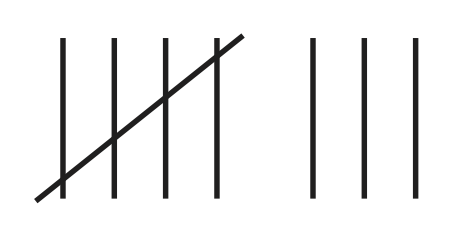
    Let’s say for simplicity that your image is black & white and is 8 bit depth. You know that this means the image is a grid of pixels, each having a value of 0-255. Now you decide to go through each pixel one at a time and keep track of a count of each pixel value you find. You come to a pixel that has the value 87. Go to your row of 87’s and increment it by one. You know, like

    Keep on going. If the next pixel is 127, go and increment the count for that bucket.

    After you count the values of all the pixels, you will have up to 256 groups of counts. Now, draw a graph (technically a column chart) or put the data in Excel and have it graph it. If you put the numbers 0-255 on the x axis (the horizontal line) and draw a point above each number corresponding to the count you made for that number, you will have a histogram.

    That’s all it is, just a count of the number of each pixel value. The actual number in each bin does not matter. What counts is the overall shape of the curve.

    An example

    Here is a fairly balanced black & white image and its histogram.

    People would call this a “good” histogram. It shows that the tones have counts from very close to 0 to almost 255, a full range from black to white The tones are spread fairly evenly. There is a bump in the distribution of the light tones – the right side- which is natural because there are big areas of snowfields and light gray clouds.

    There is no magic. You could manually follow the pattern I described and derive this yourself. It doesn’t “mean” anything of itself. It is just a way to get some information about your image.

    Descriptive, not prescriptive

    This is where people get confused, partly because they are misled by their instructors. The histogram does not tell you if you have a good or bad image. The histogram is descriptive, not prescriptive. That is, it is just information for you. It does not grade your image or tell you you exposed it wrong.

    IN GENERAL, if your histogram shows values bunched up far at the left or far at the right, that is a warning sign. It is telling you the image may be too underexposed or over exposed. Those values at the extremes show that you may be losing data that cannot be recovered.

    Whenever you see this situation it is a warning flag, not a stop sign. It may be necessary for the effect you want.

    Expose To The Right example

    You often hear the advice to “expose to the right“. This is good advice in general. It means bias your exposure higher – more histogram to the right – as long as there is no clipping of the highlights. This is because of some of that scary technical stuff you need to know. The dark areas of an image are more subject to noise. If you have to boost the dark areas that magnifies the noise. The best results are often obtained by overexposing a little and reducing the exposure of the whole image in post processing. Digital data retains more information when you are scaling it down than when you are scaling it up.

    Expose to the right is an example of a good way to use histograms. I always have the histogram view turned on in my viewfinder. As a matter of fact, possibly the single best reason to go to mirrorless cameras is to be able to get a real-time histogram. I always check it, before and after taking a frame.

    Let me emphasize again that this is information for you to use and make your own judgment. Do not let the histogram take your pictures. Keep artistic control.

    Yours can look anyway you want

    It is not unusual for me to shoot images that have a “bad” histogram. When I do this it is deliberate and I do not have to answer to the data police (yet).

    One class of very low key images is night photography. Often these are nearly all dark with only a few points of light. This is an example:

    It is hard to see at this size, but you can tell what is important from the histogram. Most data is clustered at the dark end. There is a spike at the brightest whites. These are the stars. Your instructor would tell you it is not a good histogram, but the image is exactly what I wanted. An image is properly exposed if it comes out the way you want.

    At the other extreme, a high key image is almost all white. This fence in a snowy field is almost all bright values:

    The distribution (the arrangement of the data values) is skewed way to the right, but not overexposed. But there is a spike at the left representing the black fence posts. Very high contrast. This is the result I wanted, so it is correct.

    These 2 examples of “wrong” exposures should broaden your understanding of what is allowed. Anything that matches your intent is a properly done image.

    A great tool, but just a tool.

    I hope I have given you a better feel of what a histogram represents. It is just an overall look at the data values in the image. It is there for information to help you make the images you want. A histogram is neither good or bad. It is just information. Other people have given their own interpretation of histograms and their importance. This is a good one.

    I am very thankful for the invention of histograms and their availability in modern cameras and post processing tools. It is an indispensable tool. I use them every day. But remember it is a tool. It is not there to tell you what you can do. You are the artist. Only you can decide the result you want.

  • Obsessive Clicking Disorder*

    Obsessive Clicking Disorder*

    How many images do you click off of a scene? Why? Our wonderfully fast cameras have enabled this thing I have heard called “Obsessive Clicking Disorder”. When we see a scene that looks promising we can blast away at 5 or 10 or maybe 20 frames a second to “make sure” we get the shot.

    I claim that that is often self-defeating, even lazy.

    Machine gunning

    So we point our camera at the scene and machine gun it for 30 frames. We are afraid we might miss “the moment”. Machine gunning is a brute force technique.

    Think about the shooting metaphor. A rifle allows a skilled shooter to place a single clean hole right where he wants it. A machine gun sprays bullets all over the place in an uncontrolled way. The single rifle shot is elegant and controlled and disciplined. To me it is craftsmanship.

    Those of us shooting fairly static and predictable subjects can usually take the time to wait for the right moment and fire off just one or two or a few frames. And, of course, if you are taking long exposures you’re not going to be firing away at high speed. Less can be more.

    Bracketing

    Another time where lots of images are captured is bracketing. In certain situations this is completely appropriate. Our marvelous sensors have a great dynamic range, but sometimes scenes require more. Exposure bracketing might come to the rescue by allowing an HDR compression of the range.

    Do very many of your situations actually require this? I couldn’t put a percentage to my work. But I know it is only the occasional high contrast situation that forces me to use it. The extra work and the varied results of HDR processing make me try to avoid it where possible. And scenes with movement are often not good candidates.

    Be aware

    But what is the alternative to obsessive clicking? How can you get the shot of the fleeting moment?

    To me the answer is being aware and attuned to the action going on. If we train ourselves to anticipate the “decisive moment” and be ready for it, we can capture it and know we have it. A good DSLR is fast (10-20 mSec to trigger an image capture, maybe even faster if using electronic shutter). Compare that to machine gunning at 10 frames a second. That is one image every 100 mSec. But within the regular, unvarying 100 mSec ticks a person can move a few inches or blink. You are just hoping that the odds will work in your favor. And often they do.

    An alternative, though, is to focus on the moment, the gesture. You might be amazed at the ability you can learn to recognize and capture that peak time when the gesture and the eyes and everything is right. Triggering the shot then will usually get the scene you hoped for.

    Gesture

    The incredible Jay Maisel describes this as waiting for the gesture. That is his version of the decisive moment. When we get in the flow and are completely attuned to the subject we can usually anticipate when these great gestures will happen. Wait for it. If you are concentrating, you will have time to press the shutter and get it.

    “Such moments are fleeting, requiring more than fast autofocus and reflexes. It demands that the photographer be able to read a scene as it’s playing out. He or she had to understand that all moments evolve, having a beginning, middle, and end. With that understanding, the photographer can anticipate that peak moment where all the visual elements or light and shadow, line and shape, color and gesture culminate in a moment that can only be captured in a fraction of a second.” Ibarionex Perello

    I find this is a wonderful and rewarding skill to learn. It is precise and immersive. You become highly engaged in the scene and the action. You learn to grasp the whole gestalt while still triggering on that perfect instant. It is a great feeling.

    Have you experienced it? You know it’s coming. You are in the right place to view it. Almost, Wait for it. NOW! When you hit the shutter you know you have the shot. It’s a great feeling of accomplishment to know you captured exactly the gesture you were anticipating.

    There is a time

    Do I ever blast away at high speed? Well, actually no. I stopped doing that when I didn’t have any more family doing sports that I was shooting. I do use exposure bracketing at times. On occasion I even take exposure bracketed panoramas.

    I recognize that there are times when any of us will take lots of frames. I’m just trying to convince you that machine gunning is a sort of backup plan, not a primary strategy.

    As an example of where I would do it, I love taking images of reflections in water. This is a dynamic scene that never repeats. I may take a several frame sequence to capture variations of reflections so I can choose the one that works best for me. But by the argument I used before, this is not an attempt to capture a peak moment by brute force. I expect each frame to be an excellent image but hopefully one will speak to me as the best.

    Be disciplined

    At the root it is about being disciplined. Closing down our options and forcing ourselves to take one frame of the decisive moment is kind of like the exercise I recommended of going out with 1 lens. It requires us to practice and develop our skill and use our mental quickness rather than brute force.

    I believe mental discipline and the ability to make fast decisions is required for photography. Learning this skill will, I believe, help us make a higher percentages of images we are proud of.

    This is just my own value, but I have discovered that if I can help it, I really don’t want to spend the time editing through 500 shots only to throw 400 of them away. At some level it seems to me that I am shooting randomly and grasping at straws rather than being deliberate and disciplined about my work. Photography is an art and a craft. Training and experience and discipline will improve our art.

    Try it. Let me know who it goes after you practice a while.

    space

    *Yes, it is a pun on Obsessive Compulsive Disorder. I know that is a potentially debilitating disease that 1-3% of the population has. It is not something to make fun of and I am not doing that or denigrating anyone suffering from it. I am just using this well known phenomenon to make a point.

  • Behind the Curtain

    Behind the Curtain

    Pay no attention to the man behind the curtain” is one of the classic lines from movie history. It is brilliant and captures a universal truth.

    If you don’t remember, or if you’re young enough to never have seen The Wizard of Oz, Dorothy and her friends are terrified and fascinated by the projected image of an imposing wizard with his booming voice. But her dog Toto pulls a curtain aside and reveals an old man who is controlling things through levers and buttons. He tells them to pay no attention to the man behind the curtain to try to deflect attention from what is really happening.

    Once revealed, the magic is not intimidating anymore. This is very true in most things. Even the Wizard of Oz turns out to be a nice guy.

    Magic

    The famous science fiction writer Arthur C. Clarke said “Any sufficiently advanced technology is indistinguishable from magic.” This is also very true and we are effectively surrounded by magic all the time. For most of us, the internet is magic, making a phone call is magic, even getting in our car and driving it is magic. These and many others around us everyday are marvelously advanced technology products that few people really understand. We use them but don’t understand how they work.

    But everyone who uses a tool or product forms a mental model to help us understand how it works. Some of the models we make are wild hallucinations with no basis in fact. These incorrect models quickly break down when we venture into new or advanced territory. They no longer allow us to predict behavior, which is the purpose of the model.

    The way to counter this is to learn more accurate models of what is really happening. Learning the reality in effect lifts the curtain and lets us see how the thing really works.

    Maybe it is not as romantic and fanciful to learn the reality, but it lets us become more expert in the thing we are using. The magic becomes just technology that now serves us well.

    Photoshop

    I want to use Photoshop as today’s example of magic. I’m afraid that to many artists Photoshop appears to be magic. This is an invitation to get over that by starting to peak behind some of the curtains.

    I will not downplay it or dumb it down. That would not be treating you like an adult. Photoshop is very complicated. At first it seems like looking in the cockpit of a jet aircraft. I have been at it since about Photoshop 4 (it’s on version 21 now) and I have been fortunate to have the benefit of live and video instruction from some master teachers such as Ben Willmore, Dave Cross, and John Paul Caponigro. But every week I study it more and learn new abilities and ways of combining things.

    But there is a good side to all this complexity, too. All that capability to learn means all that capability that can be used creatively for your art. I rate Photoshop as one of the finest software products ever created, and I have used a lot and I developed software for many years.

    It is almost true that Photoshop is not magic. Content Aware Fill and Content Aware Move and a few other features may actually be magic. But for the most part it is just a collection of relatively simple tools that can be combined together to create artistic results.

    Demystify

    Demystifying is what happened with the curtain. It will happen for you with Photoshop if you burrow into it and get past the fear factor. You will eventually have a moment when the mists lift and you understand how people create with tools like this and how you can use the tools to realize your own vision. This is a moment of enlightenment. There is no right or wrong way.

    If you just try to memorize all the tools and settings and features you will go crazy. There are an unimaginable number of combinations. It is important to first learn the principles of how to work in it. I’m just going to discuss the Photoshop features that are most important to photographers.

    Basics

    I can’t teach you to be a Photoshop expert here, but maybe I can help point out some important concepts. There are basically 2 things you can do: transform pixels or blend and combine them.

    Layers

    One of the most important capabilities you will use is layers. Get very comfortable with them. A layer is just what it says. Think of it as a perfectly clear sheet of plastic. You create stacks of layers and each one can contain pixels or mathematical operations on pixels. A layer can be an image from your camera or things you have drawn or painted or many other things, including all or parts of other images. You can add or delete or rearrange layers at will. The image you see in the main window is the view looking down through all the layers. You can never see layers. You just see the pixels on the layers.

    Pixels on a layer can just hide ones below or they can be combined with pixels below using what are called blend modes. Blend modes can cause the pixels of a layer to lighten or darken or influence just the color or luminosity or contrast of pixels below.

    In addition, a layer can have a mask. The mask can block parts of the layer from view. A phrase you will hear often is “black conceals; white reveals”. The black areas of a mask prevent the pixels of this layer from being seen in the stack. This lets us be very precise in making changes to select parts.

    Tools

    Operating across all the layers and masks you have a large set of tools. These are like paint brushes or erasers or means to select certain areas to operate on. The tools let you manipulate the layers and masks to work some of the magic.

    While layers hold pixels, tools allow us to do things to the pixels. Pixels on any layer can be added or removed or colored or sharpened or blurred or moved around to almost any level. Same with masks, which are also just pixels but just function differently.

    Principles

    Focus on these concepts. They are some of the powerful principles that make Photoshop such a marvelous tool for manipulating pixels. When you get comfortable with these basic things you will be surprised how much you can do in Photoshop and how simple it starts to seem.

    So the reality is that Photoshop is “just” a large collection of fairly simple tools. The beauty of this is that these tools can be used and combined in near infinite ways to modify or create digital art. Each user has complete ability to express his vision without being constrained by the tools to look all the same.

    There is no lack of training available in books or on the internet. Look around and find some that work for you. I recommend Ben Willmore and Dave Cross as excellent instructors to start with. They can present powerful concepts simply and make all this wondrous capability accessible to you. Buying some courses on CreativeLive is one way to get their training.

    Living without magic

    The adult world has less magic than you had when you were a kid. A side effect of growing up is there is less magic in your world. In a sense this is good. The tools we use to create our art should be just tools. No matter how powerful they are, they are just things to be wielded in our creative process.

    Save the magic for your creative vision and spirit of adventure. Keep a sense of wonder as you go through the world. You are surrounded my magic. Don’t make it less important by viewing your tools as part of the magic.

    What you see and perceive and create is the magic.