An artists journey

Tag: digital photography

  • The Catalog

    The Catalog

    The catalog is the information hub of LIghtroom. There seems to be a lot of confusing folklore about it. Let’s talk about the catalog and demystify it some.

    This is specific to Lightroom Classic. Other tools exist. I do not know them and can’t discuss them. I believe Lightroom is the most widely used image management tool.

    A database

    When I refer to Lightroom, I mean Lightroom Classic. It is the only useful version for me. So be aware I do not discuss the cloud behavior of Lightroom at all.

    Lightroom is both a file management tool and a raw file editor. I’ve discussed raw editing before, so this article will just be about file management. We tend to shoot a lot of images these days. Without a way to organize all these and search for the ones we want, they become almost useless. How do you locate the right file when you need it?

    We do it with Lightroom and its catalog. The catalog is a database. I know that is a scary term to some, but it just means it is a file on the computer. The catalog in Lightgroom Classic is stored locally on your computer. It has a particular structure and capabilities that let Lightroom enter information about each image and rapidly search for it.

    So the Lightroom catalog holds a lot of data about our images. Some that it reads when we import our images and some that we tell it manually, like keywords and ratings and collection groupings. What the catalog does not contain is images.

    None of our images are actually stored in the catalog. They stay in our computer’s file system, wherever we decide to put them, as ordinary image files. They can be on any of our disks, internal or external. The catalog only notes their location and keeps track of it so it can call up images for us in the Lightroom screen.

    Where are the images?

    I mentioned some of the things the catalog contains. Let’s be more specific. I said the catalog does not contain any images. As you import images into Lightroom you choose where they will be stored. LIghtroom records the location about where each images is in the file structure of your computer. For instance, taking a random file that I happened to be looking at a few minutes ago, the path and file name is:

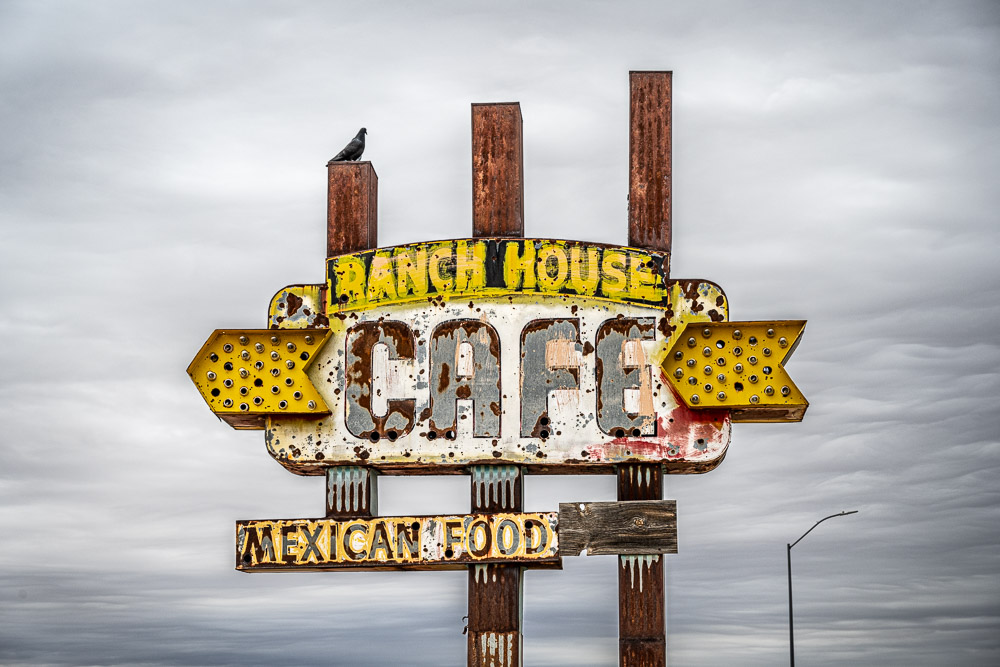
    /Volumes/LaCie-raid/Images/Images/New Mexico/Eastern I-40/Tucumcari/20231110-259.NEF

    This is the image above. This is what Lightroom has in the catalog instead of the image. Why? Because the file system of your operating system does an excellent job of managing its disks reliably and speedily. Lightroom does not try to duplicate that. Also, the file above is 52.4 MBytes. Let’s say you had 100,000 images this size stored in your catalog. Over 5TBytes of storage becomes impractical and would overflow a lot of people’s hard drive. And many people’s catalogs are much larger than that. Also, leaving the individual files visible allows us to use other tools to manipulate them.

    As I browse in Lightroom, when I come to where I want to look at this image, LIghtroom goes to the noted location on my disk and reads the image file and displays it. Actually, it first looks first in a special place where LIghtroom caches previews to see if there is a faster way to view it, but that is getting too deep for now.

    Metadata

    In addition, there is what is called metadata. This is just a computer science term meaning data about data. In our case, it is information read from the camera when the file was imported and information we have added manually.

    Examples of automatically gathered data are the camera used, including it’s serial number, the lens used., how the image was metered and exposed, the ISO. Also recorded is the dimensions, the data it was captured and many other details.

    Information we enter can include creator name, copyright information, keywords, rating, a title, a label, a caption, location, and other things. In addition, as we edit an image, all of the edit settings are recorded, from simple things like adjusting exposure to complex masks and adjustments. Virtual files are just copies of a files’ data in the catalog with a different set of metadata, not a duplicate of the file itself. And all Collections we create are simply sets of data in the catalog. Again, no copies of the files are made to create a Collection.

    The catalog holds a lot of data. It is a very important piece of Lightroom and is key to letting the whole thing work.

    How many catalogs?

    One of the first decisions to make when setting up Lightroom is how many catalogs to have. We could have a separate catalog for each type of content or activity. For instance, one for family photos, one for fine art, one for weddings, one for travel, etc. This initially seems logical to keep things separate and minimize the size of each catalog.

    My advice is don’t do it. Resist the temptation to have multiple catalogs. It will just make it harder to organize your work and harder to locate something. It might seem like a good idea to minimize the number of images in a catalog, but as far as I can tell, it doesn’t matter. I have over 130,000 images in my catalog. That is small compared to many other photographers. I am comfortable with throwing away images I deem worthless or exact duplicates. Other people don’t. But that is another discussion.

    I put extensive metadata in, such as location information, keywords, ratings, titles, and captions. And I do most of my image editing in Lightroom. This greatly expands the amount of metadata. The point is that this number of images does not appear to cause any stress or slowdown in my Lightroom catalog. I know of photographers who have catalogs several times larger.

    Don’t do this

    As a “don’t do this” anecdote, I have a friend who decided he knew better than Adobe and was going to manage his data more closely. He set up a catalog for each hard drive he had. As he outgrew a disk and added another one, it was a new catalog. Consequently, he has a data nightmare. It is very difficult for him to locate something unless he can remember exactly when it was shot and consequently what disk and catalog it is on.

    I strongly recommend you use 1 catalog and upgrade to larger disks as you run out of space. Yes, Lightroom can manage files across multiple disks, but you probably don’t want the bother. Disks wear out and need to be replaced anyway.

    How to organize it?

    How you organize your files is a personal decision. You need to figure out how you think about your data and how you “self organize”. You can see several things about my organization decisions from the example I gave of the file location data LIghtroom records. Most of my files are organized geographically. And my file naming is mostly centered on dates. It is not important to me to name images by their content. That is what Lightroom is for.

    All my images are stored on 1 fairly fast RAID disk drive. My feeling is this is easy for me to know where things are and easy to organize my backup strategy. The catalog itself is on an external fast SSD. The catalog is heavily used and this made a large improvement in performance.

    Be fanatical about backup! Your data is important. I use a combination of Time Machine – one of the greatest inventions in the history of computers – and a rigorous backup strategy using Carbon Copy Cloner. I do not receive any compensation from them for saying this. There are 2 external backup disks attached to my computer and another network attached RAID disk physically separate within my studio. I also backup to small hard disks that I rotate to offsite locations.

    So do you have to adopt any of the organization I use? Absolutely not. Every instructor probably has their own unique recommendation that is adapted to their needs and preferences. As I said, it is a personal decision. But it is a decision you have to make. Decide on your strategy and stick with it religiously. It will pay you benefits.

    Do all file operations from Lightroom

    Have you ever seen a “?” in place of an image? That is because Lightroom could not find the file. This is usually because a disk drive is offline or you moved some files using your computer file manager. Lightroom can’t locate the file and the best it can do is show a preview if it has one and mark it with the “?” to indicate it needs to be located. Locating a moved image is easy, but it is easier to avoid the problem entirely.

    Always do all of your file management from within Lightroom. Always! Lightroom has to know the location of each file it manages. It has very good capabilities for creating folders and moving files and folders around. It does the work of moving them on your computer file system and remembers the locations. And It is probably even faster and easier to move a large group of files from LIghtroom than it is using your computers file manager.

    All the eggs in one basket?

    If all your data is in the catalog, aren’t you at risk if it gets corrupted or erased? Yes. But there are many ways to mitigate this.

    LIghtroom has settings to automatically backup its catalog. Use that. Second, use other backup solutions like Time Machine and Carbon Copy Cloner to do your own backups.

    Third, you can optionally have most of your metadata also saved to files alongside your image files. These are known as sidecar files and have the extension “.xmp”. I turn on this capability. If the catalog is lost or corrupted it is possible to recover most of my data to a new catalog by importing the images and these sidecar files. This is a topic for another article.

    And lastly, I have been using Lightroom full time starting with its original beta release. Adobe has done a marvelous job of reliably keeping my data in tact. This is not a guarantee of future behavior, but so far they have earned my trust.

    Summary

    The Lightroom Classic catalog is a database stored locally on your computer. It is well established, good technology. Not magic.

    We do not see the catalog as a database, we do not have to know about databases, and we do not need to know much about searching databases. All that is wrapped in the Lightroom program. But knowing a little about how it works makes managing it easier.

    All of the data about your files is stored in the catalog, but not the image files themselves. The organization of your file structure, the naming of files, and the metadata you add are all completely up to you.

    Create an organization that works for you and stick with it. Lightroom will assist you by managing all the data the way you want.

    The image with this article is the one I referenced to show the location information Lightroom records. You can infer from the file path that it was shot in Tucumcari NM on Nov 10, 2023. It has nothing specifically to do with catalogs, I just decided to show what that image was to make it real..

  • Depth of Field

    Depth of Field

    In a previous post I said I would talk about this later. Here it is. I believe most photographers only vaguely understand what depth of field (DOF) means. That’s probably OK, as long as we can still use it to our advantage. You don’t have to know in detail how your car works to be able to drive it, but it helps.

    What is it?

    You have seen it. We focus on a subject, but when we look at the image we are disappointed that another subject or the background was out of focus. We have been bitten by too little DOF.

    Depth of Field is the distance between the nearest and farthest points in the frame that are in acceptably sharp focus. OK, we can intuitively understand distance that is in focus. But what does “acceptably sharp” mean?

    The reality is that when your focus your super expensive, multi-element, rare earth material lens, it technically only focuses at exactly one point. Everything else is to some degree out of focus. But like many things in life, the precise details do not matter. What matters is the result.

    For most of us in most of our applications, it is OK for things to be a little bit out of theoretical sharp focus. We can’t really see that unless we magnify an image greatly.

    Circle of Confusion

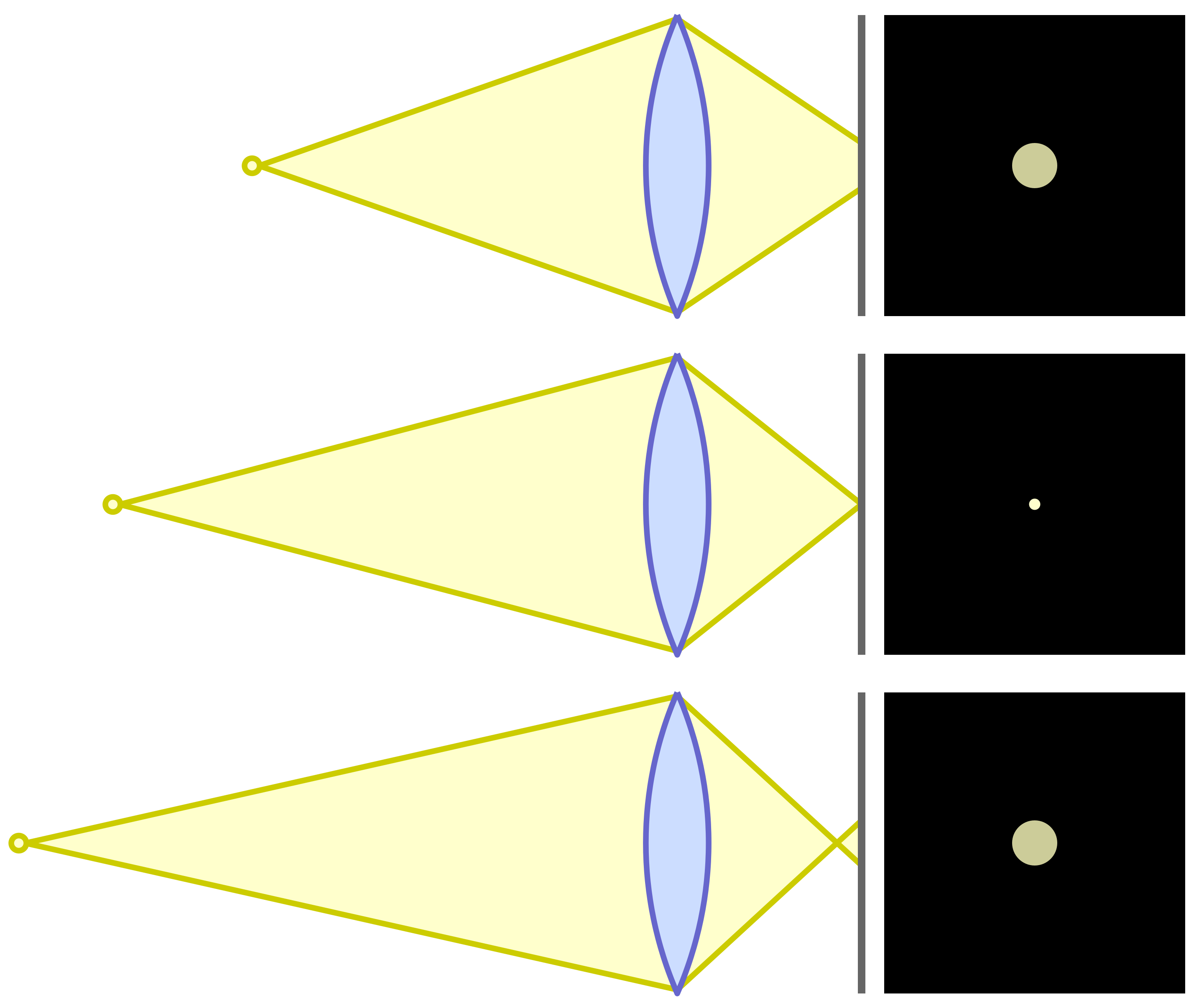
    So for most of our work, we will accept a certain amount of out of focus as unnoticeable. The measure of this for Physicists and Optical Engineers is called the “circle of confusion“. If you focus on a point of light, you expect it to be imaged as a sharp point. But as one of these points gets in front of or behind the sharp focus plane it becomes a circle instead of a point. You have seen this as you adjust the focus point in a scene.

    The overly technical term “circle of confusion” refers to how large these circles are. And what we care about is how large they can get before we perceive them as out of focus. This picture helps illustrate that. The center diagram is focused precisely. The top one is focused slightly behind the focus point. The bottom one is slightly in front of the focus point.

    Circle of Confusion illustration

    Physics

    You probably don’t actually care about the math. But here is it:

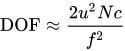
    The approximate depth of field can be given by: {\displaystyle {\text{DOF}}\approx {\frac {2u^{2}Nc}{f^{2}}}}

    for a given maximum acceptable circle of confusion (c), focal length (f), f-number (N), and distance to subject (u).

    This is precise, but not helpful. There are DOF calculators available, but most of us will not use them when we’re out shooting. I never would, and I even understand the math. 🙂

    What does it really mean?

    It means that if we want to maximize the apparent range of sharpness in a scene to our advantage, we need to understand some basic things about our cameras and how to adjust them for the results we want. None of it is magic and we do not need to become mathematicians.

    Controlling the DOF becomes just another of the design choices we make more of less automatically as we set up a picture. When we become familiar with the concept it gets to be an easy thing to take in consideration.

    How do you control it?

    If you unpack the equation above you discover that there are are really only three things to juggle: focal length, aperture, and distance to the subject. I take circle of confusion as a relative constant, since we don’t usually think about it while we are shooting.

    Normally we consider the aperture to be our main control of DOF. That is because it is the easiest one to adjust. You have discovered or been taught that a wide aperture (small f/ number) gives a shallow DOF and a small aperture (large f/ number) gives the most DOF. This is true, as far as it goes.

    But there are 2 other components to the equation. We also affect DOF by our lens focal length choice and by our distance from the subject.

    For any given lens, the closer we are to the subject, the shallower the DOF is. Telephoto lenses exaggerate the effect more than wide angles. Increasing the focal length reduces the DOF. And getting further from the subject greatly increases the DOF. Looking back to the formula briefly, notice that the focal length and distance to the subject are both squared. This means they are a much stronger influence than the aperture.

    Aperture, focal length, and distance to the subject all work together to determine the DOF A smaller aperture (larger f/ number) increases it. Moving further from the subject increases it a lot. Using longer focal length lenses decreases it a lot.

    It is said that wide angle lenses have greater DOF

    Conventional wisdom is that wide angle lenses have more DOF than telephoto lenses. Actually, no. But practically, yes.

    The discrepancy is how we tend to use them. We shoot with a long lens and decide there is not enough DOF. So we put on a wide lens and shoot the scene from the same position. DOF increases a lot. But the field of view has also expanded, so we have a much wider shot. If you were to walk up to the subject to make the image size field the same as before, the DOF would be the same. Thank you physics.

    But in practice, yes, using a wide angle lens usually gives us a great DOF because we usually shoot from relatively far away.

    Hyperfocal distance

    One “trick” that has been used for a long time and that simplifies getting maximum DOF is to know about hyperfocal distance. The hyperfocal distance is an optimum point where everything from infinity to a point near the camera is in acceptable focus. Seems too good to be true, but it is just physics again.

    The technique is getting harder to determine now and is probably falling into disuse. Way back we tended to shoot prime (non-zoom) lenses and they had focusing scales. For a given aperture, all you had to do was adjust the lens so the distant aperture number was at infinity. You were now focused at the hyperfocal distance. Everything from the near focus scale mark to infinity is in acceptable focus. It was easy and very useful.

    Now, though, zoom lenses have gotten very good and most of us use them. The problem is that they are optically complex and do not focus the same. They cannot, by their design, provide us with focus scales.

    What to do? A pretty good solution is called the double the distance method. There is some estimating (e.g. guessing) and approximations involved, but it is better than a lot of alternatives.

    Say you want to have a flower about 5 feet away in focus and have everything in focus all the way to infinity. Focus at about 10 feet. Choose a “suitable” aperture, probably around f/11 to f/16. I told you there was guessing. But by doing this, the field from about 5 feet to about infinity will be sharp. Check it in your viewfinder. Adjust if necessary. The hyperfocal point is about 1/3 of the way from the closest point you want sharp to infinity. You have to estimate it.

    Making some educated guesses based on knowledge of what’s going on is better than a random guess based on no knowledge.

    Just do it

    Photography and video production are probably the most technical of the arts. We are constrained by the physics of the sensors and materials, the properties of the optical systems and lens design, and the effects that can be created by these. Compounding these is the reality that we are typically imaging real subjects with all their flaws and constraints. It’s wonderful!

    Don’t get caught up in the math or the technical details unless you are a nerd that really likes that. It is seldom necessary for making good photographs. I just put the DOF formula in to show you it is based on science, not some mystical mumbo jumbo. I would never use it in the field.

    Learn that depth of field is a balance between the aperture, the lens focal length, and the distance to the subject. Experiment with them. Get a feel of how they relate and practice getting the results you want. It is harder to describe than it is to do.

    Today’s image

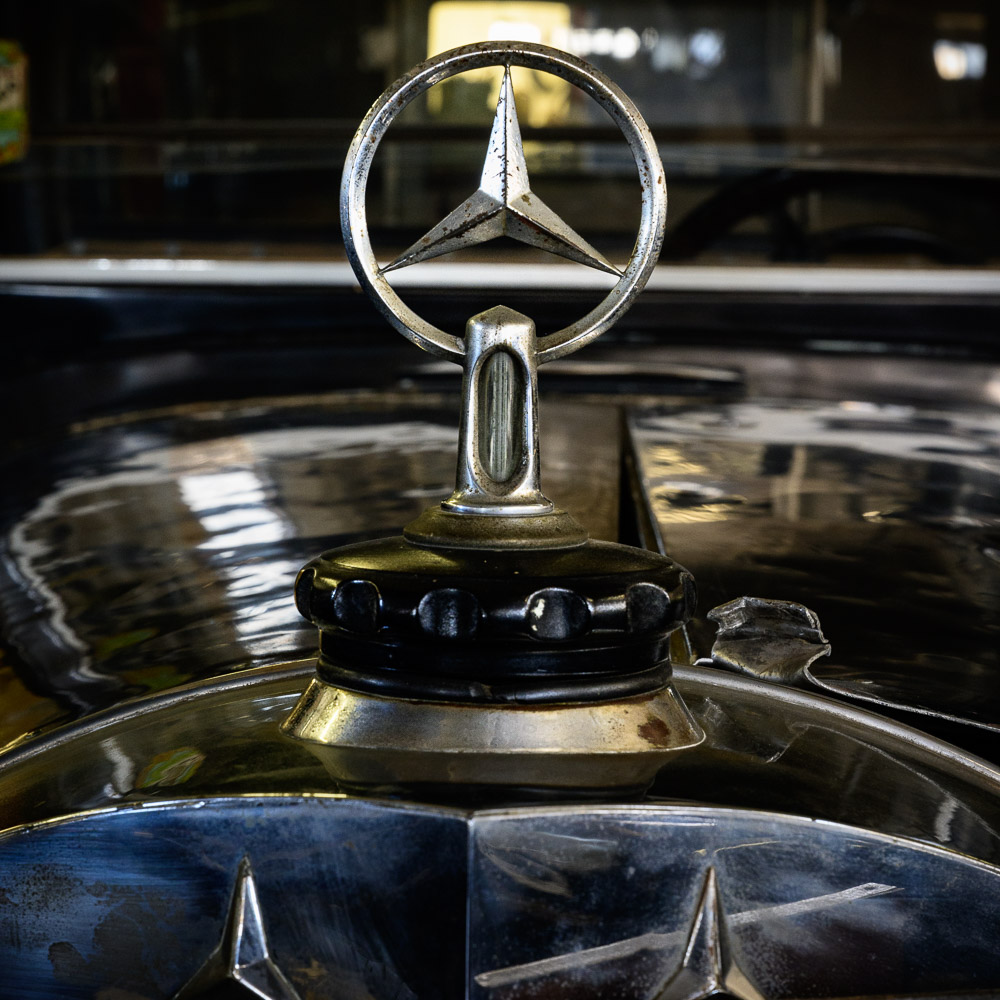
    This image demonstrates intentional shallow depth of field. I wanted the foreground and background definitely blurred, but still recognizable. The effect was achieved with a moderate aperture, f/11, and a short telephoto of 70mm close to the subject. Remember, increasing the focal length and decreasing the subject distance both strongly reduce DOF.

    Experiment more. Make the use of your equipment to achieve your intentions automatic.

  • Limiting File Size

    Limiting File Size

    In a previous article I talked about the “bloat” that happens when we edit in Photoshop. Is there anything we can do about it? Should we be concerned about limiting file size?

    RAW vs Tiff

    RAW files are fundamentally different from Photoshop files. A RAW file captures and preserves the data directly from the camera sensor. This data still contains the artifacts from the Bayer filter technology, that is, each pixel represents 1 value of red, green, or blue. Data in this form cannot be shown on your computer monitor until it is processed and expanded by a RAW converter like Lightroom Classic.

    It is very important to realize that this data is unaltered, no matter what fancy processing you do in your RAW editor. The adjustments you make are kept as a collection of “processing instructions”. These are applied in real time whenever you view your RAW file.

    Because of this design, Lightroom can only change the look of pixels. It cannot in any way add or remove or alter individual pixels. No matter what it looks like on screen.

    For instance, even if you use the Healing tool to completely remove a person or object from the picture, the original data is always still there. What it saves is instructions telling it what region to select and what region to copy from. This processing is applied, again, each time you view the image in the editor. Actually, it usually just keeps an edited preview of the image to show quickly, but that is getting too deep.

    Photoshop manipulates pixels

    Photoshop, though, is the heavy duty pixel pusher. It has no moral imperative to prevent you from doing anything to image data. You can freely add or remove or alter or stretch or shrink or copy over anything. Unless you take steps to edit non-destructively (more on that later), you can remove something from the image by simply copying other pixels over the area you want to remove. The original data is permanently gone. Photoshop doesn’t care.

    To do this level of manipulation requires Photoshop to expand the original RAW data to a pixel structure. The pixel data has 3 values, red, green, and blue, for each pixel and each of the values is probably 16 bits if you are editing in one of the “safer” color spaces. I recommend it. This expansion automatically makes Photoshop’s file size at least 3 times larger than the RAW file.

    Once the file has been expanded to pixels and edited, there is no going back. It cannot be reprocessed back into a RAW file. You can’t put the genie back into the bottle.

    Even RAW files can get big

    I am presenting this in a rather black & white (metaphorically) contrast. RAW file editing is no longer immune from growing quite large. The “culprit” is masks.

    It used to be that RAW processing was rather coarse and simple. If I adjusted the exposure of the image it applied to the entire image. And the processing instruction was small and simple. This is the literal data that is saved for that adjustment:

    crs:Exposure2012=”+0.65″

    Don’t worry about the exact meaning of all of it, That is for the Engineers. The point is that only these literal 24 characters are stored to change the exposure of the entire image.

    But then the designers at Adobe and others created very useful and necessary magic. We can mask areas and selectively adjust them! This is an awesome and very welcome change. It pushes back the boundary where we have to go to Photoshop to finish our files. These masks and edits are stored as text with the other processing instructions. As you might guess, it can get large.

    After doing a lot of masking and editing I have seen some of these “sidecar” files grow into 10 megabytes or more. So if my original RAW file is 50 MBytes and the editing instructions add another 20 MBytes, that is quite a lot bigger. Still nothing like going to Photoshop, but I needed to point out that RAW processing is not entirely free.

    Non-destructive editing

    Please give me a moment to plug a non-destructive editing style in Photoshop. Photoshop can do amazing and totally un-undoable things. I know that I often change my mind or have new insights about an image after it ages a while. So weeks of months or more after an initial edit, I may look at an image again and see a different direction to be taken. If the Photoshop edit has gone down a path of no return, this can be hard.

    Sure, I could go all the way back to the original RAW file and start over, but this is usually not what I want to do. I don’t want to repeat the hours of detailed work I already did. Typically there was a branch, a fork in the road while I was editing. I chose one path and later I decide I would like to explore the other one.

    With discipline, Photoshop edits can be almost totally non-destructive. This means you can undo any decision later. Or perhaps strengthen or reduce the effects of an edit.

    Probably 2 techniques serve for about 80% of the goal of non-destructive editing. The first is to use a new blank layer for pixel changing edits. So if I want to remove an element from the image, I will typically create a blank layer, then use stamp or move to overlay changes onto the image. the original information is still there is I later want to expose it or do a better job of removing it.

    The second powerful technique is adjustment layers. Use adjustment layers rather than doing adjustment directly to the image layers. This allows the adjustments to be changed in the future. It also allows for masking to limit the effects to selected areas.

    Steps to limit Photoshop file size

    It is a tradeoff: do all your processing in Lightroom or go into Photoshop. Adobe and others are constantly pushing out the boundary by giving us more and more power and capability in our RAW editors. This is very welcome.

    But there comes a point when we may have to do things Lightroom cannot do. There are things we can do to limit the overall Photoshop growth to the minimum, about 3 times the original RAW size. Basically, these destroy the non-destructive edits I recommended before. So all of those edit layers can be flattened down before saving the file.

    This commits the edits permanently. They can’t be undone in the future. But the file size will be smaller. And rasterizing smart layers will save a lot of space. Also making changes permanent.

    If it sounds like I am negative on doing this, I am. Once I invest a lot of time editing an image in Photoshop it becomes the “master” image. I usually want to keep the freedom to change my mind.

    Why bother?

    Maybe it’s the wrong attitude, but I try to act as if the file size does not matter. A large file is just a price to pay for the ability to craft an image I am pleased with. Disks are relatively cheap.

    It’s a pain when I out grow the 4GByte limit for Tiff files and have to go to a .psb file. Lightroom does a bad job of the user experience. But I put up with it because I want to hold all that work in an editable state.

    So officially my attitude is “why bother?”. Don’t sweat the file size growth. You went to Photoshop for a reason. Use it. Do your work. Files get large, It’s just a cost of doing business.

    Today’s image

    This is an example of a very simple looking file that grew dramatically. The final Photoshop file is 22 times larger than the edited RAW file!. From 61.5 MBytes to 1.34 GBytes. It sure doesn’t look that complex. It was necessary and I would still do it the same way again.

  • So Big!

    So Big!

    Our modern cameras have lots of pixels. This is a great benefit for us, especially if we want to make large prints. But sometimes the files we are editing can get so big we have trouble dealing with them. Why is that?

    Sensors

    I have made the point before that our modern sensors are amazing. The camera I shoot captures 47 MPixels for each shot. That’s 47 million pixels. There are sensors that go up to 150 MPixels in some medium format camera bodies. I haven’t seen the need to move to that yet.

    Why do we need so many pixels? Some will state that we don’t. That it is just pixel envy that keeps us seeking more. There is a good argument that about 20 MPixels is enough for the vast majority of applications.

    That is for you to decide for your own needs and preferences. I can state that I believe the quality of our images has moved far beyond film days. Digital images produce the sharpest, most detailed, most colorful, most editable results that have ever been possible, except in some very niche applications. There is no going back.

    Raw files

    Raw files hold the information that comes directly off the camera sensor. There is minimal processing done. I have discussed Bayer filters and how we get color images. The Raw file is not really an image we can look at yet.

    But there are some great features of raw files we need to be aware of. First, this is the closest we can get to the exact data that was captured by the sensor. Little processing has been done. All the processing and interpretation of the resulting image is ours. Among other reasons, this is a reason to always shoot raw instead of jpg files.

    Second, the nature of the raw file is that it cannot be edited. The original data is always preserved. Yes, of course, I can go into Lightroom Classic (I will always call it just Lightroom from here on) and do amazing things to the image. All of the changes are saved as what are termed “processing instructions“. The original data is never altered. It cannot be altered.

    One of the things this means is that years from now when I have new tools or change my mind about how I want the image to look, I can go back and re-edit it. I can even reset to the original captured bits and start over. No data is ever lost. This is a great things.

    And thirdly, the raw file is relatively compact. My camera captures 47 million 14 bit resolution sensor values, each either a red or green or blue data. It is not yet “demosaiced” to expand the Bayer sensor data to full color data for each pixel. In addition certain meta data values are stored in the raw data. Things like the camera and lens information, capture time, my copyright information, etc.

    Raw file size

    My camera is set to do a lossless compression of the data before saving it. So no data is ever lost in the process. Looking at a randomly selected file I just shot, its file size is 58.08 MBytes on my file system. The size of my raw images varies because of the amount of lossless compression that can be done on each image.

    But think about this a minute. I captured 47 million 14 bit images. This should have been 94 MBytes of data, not counting the extra meta data. I am assuming they store the 14 bits in 2 8 bit bytes. I don’t know if that is true. This means the saved raw file is even smaller than the data that came off the sensor. As I edit it and add processing instructions, the file gets somewhat larger, but seldom huge.

    Photoshop bloat

    Now I sent this raw file to Photoshop and immediately saved it. No editing. The file size is 229.16 MBytes! It is about 4 times larger! And I didn’t even do anything to the image! Why is this?

    Well, Photoshop edits pixels, each a triple of (red, green, blue) values for each pixel. Photoshop expands the Bayer data to the flat grid Photoshop needs, This is what Photoshop works with and what is saved. That automatically makes the file at least 3 times its original size. The raw file was compressed, that probably accounts for the difference.

    Now to illustrate more of what Photoshop does, I added a blank layer and used the spot healing brush to correct a couple of blemishes, very little. Saving the file again grows the file size to 548.08 MBytes! It doubled!

    To continue the demonstration, I added a curves adjustment layer and saved the file again. Now the size is 632.72 MBytes.

    The difference

    It is clear that LIghtroom and Photoshop show very different behavior when editing images. This is because of their nature and design.

    Lightroom is called a parametric editor. It does not modify the image data, Rather, it keeps a list of processing instructions to tell how to change the look of the image when it is viewed.

    Photoshop is a pixel editor. It can add/delete/modify pixels at the most detailed level. You have to be careful that you do not lose the original data. It does not care. It will do any amount of change you request. And it has the power of layers to build of levels of modification. This can lead to huge file sizes.

    Did you know that there are maximum file sizes for Photoshop files? Standard Photoshop psd files can only be up to 2 GBytes in size. Tiff files can only be 4 GBytes. I exceed these limits a lot. The only choice then is to switch to Photoshop’s “big” file type, the psb. It can grow much larger. Actually, it can handle us up to 4.2 Billion GBytes. That will work for a while. 🙂 Unfortunately it is not a choice to automatically use it.

    Any solution?

    Well, there is the “if it hurts don’t do that” solution. Stay in Lightroom for most of your image processing. Only go to Photoshop for situations that Lightroom cannot handle. This is a good strategy and I use it.

    But if you have to do that detailed pixel grooming and you have to use many layers to process your image to your taste, accept it. The cost is much more powerful computers and larger and faster hard drives. I have both. It is a cost of doing business the way I want.

    Editing large files in Photoshop will lead to very large files on your disk. I have a lot of multi GByte files. That is, some of my files have grown to about 100 times the original captured file size! Ouch. I can’t do this routinely. It has to be for special images that are worth the time and file size to do this.

    When you have to call out the big power tool, Photoshop can do almost anything. But the cost can be high.

  • Not HDR

    Not HDR

    My last article sang the praises of HDR processing. I don’t want to over sell it. Today I will try to balance it by showing we typically do not need to use HDR.

    The good

    My previous article attempted to show when and why to use HDR. There is a time and place for it. In general, if a histogram shows more than about 7 stops of needed information then I would consider HDR, if the subject and situation allows it.

    The example I used was a scene with the sun visible in the frame but where I also wanted to preserve the deepest shadows. Back in the film days we had to use a split neutral density filter over the lens to try to compress the dynamic range in these situations. Whenever you would have reached for the split ND filter is the time to consider if you can use HDR instead.

    The bad

    But HDR has some problems and limitations. There is the dreaded “HDR look” that most people want to avoid. In addition, there are problems with subject movement and extra processing steps to do.

    When HDR first became available, people tended to go crazy with it. It was almost a symbol of showing off the new technique. The HDR look was over compressed with flat tonality and lack of true whites or blacks. Sure, I could shoot that scene with a 20 stop range and make a print. Too bad it looks weird. It became almost a cliche. Many “serious” photographers shunned it as looking artificial. It got a bad reputation.

    But the problem was how people used it, not the technique itself. Almost any technique can be over used to create unappealing images.

    There is also the problem I mentioned with subject movement. To create a good HDR image there must be very high correlation between the pixels of each exposure bracket. That is, there can’t be significant movement.

    And there is the extra processing. This is not too big of a problem anymore. We can quickly do HDR processing from within Lightroom or Photoshop or your software of choice. It is probably easier now to do it than it was to adjust a split neutral density filter and figure out the exposure.

    Why we don’t usually need it

    Trust your sensor and the processing software on your computer. Modern high-end camera sensors are amazing. They record the greatest dynamic range of information that has ever been possible in photography. I’m sure it will only get better with new generations of equipment.

    My camera records a far greater range of information than it is possible to print. Prints are my gold standard. They are the expected outcome of my work. A surprising fact to many is that, although it is hard to compare because the physics are totally different, the effective dynamic range of print media is around 6 to 8 stops. So making any print has some aspects of dealing with HDR data, since the captured data is probably much greater than the final print.

    OK, so I am shooting a high contrast scene. I am careful to allow a little space on each end of the histogram, so say I am dealing with about 12 stops of range. The reality is that, for most needs, this can be used to make a great print.

    But that 12 stops of data has darks that are down dangerously close to an unacceptable level of noise. And the brights are dangerously close to clipping. Is that imperfection OK?

    How to process extreme ranges

    This is not a tutorial on photographic processing. You can find too many of them on the web. I will just give some suggestions. In Lightroom (Classic – the only version I think is worth using) just the 6 controls in the Tones section of the Basic panel can do wonders. And I seldom use Contrast, so there are really 5 most important ones.

    Use Whites and Blacks to set the overall white and black points as desired. Then I often use Exposure to balance the overall tonal range. Finally I use Highlights and Shadows to fine tune the tones.

    These simple adjustments, along with some tweaks in the Presence section, can do amazing things to “rescue” most images. These are probably an 80% fix for most situations.

    Of course, when I select an image to print, I will spend a lot more time working on it. A lot of work will be done with curves and masking and doing fine adjustments. Sometimes I will send it to Photoshop for very detailed tasks that cannot be done in Lightroom. Editing an image can take many hours. Most of us are pretty obsessive about our work.

    My point here, though, is that most single captures have enough data to make a great print or other final image. Sometimes we just have to work with it a little.

    Maybe you don’t want it

    The look of your final image is an artistic decision. It is not dictated by the “reality” of the original scene. You or I as the artist decide the look we want. What we decide is “right”, at least for us.

    So I may not want to create a perfectly balanced image that retains all the tones and data of the histogram. I may want to crush the blacks to make a moody, low key image. I may want to over brighten the image to make an ethereal scene. It is not written anywhere that the final print must look exactly and faithfully like the original scene.

    This is where artistic intent comes in.

    It is not numbers

    I want to end with the point that we are creating an image, not manipulating numbers. Well, we are manipulating numbers, but that is not what counts. What counts is the look and expressiveness and quality of the finished product.

    Photography is the most technical art, but do not be dictated to by the technology. Do not let someone say you can’t do something because the numbers are wrong. All that counts is the final art you create. Emotional response trumps technical excellence. How does it look to you?

    Example

    The image today is a full histogram spread. Single capture. I think this kind of thing comes out OK. What do you think?