An artists journey

Category: Craft

  • Improve Your Portfolio

    Improve Your Portfolio

    If you are an artist, you probably have a portfolio. This is simply a collection of your best work. One important thing I have discovered is that when you pull a portfolio together, you are not done. It is not done. Your portfolio selections can probably be improved. The portfolio improvement process is a critical skill to work on.

    Have you had a relative or friend who wanted to show you “a few” pictures of their vacation? You know, they took 1200 pictures and they want to show you every one of them. Eventually your eyes bleed and you want to strangle them.

    Some portfolios are like this. We like almost every one of our images so other people need to see them. Don’t be that one.

    Less is more

    Here was a hard lesson for me to learn: every image you take out of your portfolio makes the collection stronger. On the surface it doesn’t make sense and it hurts a lot to do, but it is true.

    It has been said your portfolio is only as strong as your weakest image. Therefore, every weak image you take out makes the remaining ones stronger overall. If you actually take out the weakest one. Therein lies the hard part.

    How do you take out that image you love or represents a great memory for you or was a once-in-a-lifetime location? You do it brutally and without mercy. Sorry. That’s the way it is.

    The viewers of your portfolio don’t care. They weren’t there with you to share the experience. Any image you show needs to be near perfect technically, compositionally, conceptually. This is representing who you are.

    Portfolio improvement process

    I recently watched a video by Ramit Sethi. He is a well known writer on finance and business. Something he talks about a lot is copy writing. Copy, technically, is any written communication you get from a business. It can be ads or email or brochures or anything else. Ramit is persuasive in showing that great copy is far more effective than weak copy.

    In this valuable video he made 3 points about improving copy, but I was impressed that the idea applies to other things, too. Paraphrasing him, the points were

    1. Know if something is good or bad
    2. Know why it is good or bad
    3. Know how to improve it

    I believe this same process can apply to building a stronger portfolio. It is a model for a vary mature and knowledgeable way to approach improving something.

    Recognize good

    Do we really recognize the good? Without letting our emotions get in the way? Do we have a base of knowledge to compare our work to?

    We can educate ourselves to improve our recognition of good vs. bad. One easy thing is to look at a lot of good examples. Spend time in museums and galleries. This work has been vetted by curators. That doesn’t mean much in reality, but at least you know someone consciously chose the work there.

    Books of images are useful, too. Most contain carefully chosen collections of the artist’s best work. Again, we don’t really know who did the choosing or by what criteria, but if the work is being presented as art it is often quite good.

    Finally, cultivate a collection of artists you admire. Browse their web galleries regularly. They also often have very good blogs. But of the many thousands of photo web sites, probably only a small fraction is worth bookmarking.

    Exercises like this will help build a base of knowledge. It gets us familiar with the look of good work. I can’t recommend that you will get better by looking at bad art.

    Articulate good

    Recognizing good is an excellent start. It probably puts you ahead of most people. But we also need to be able to describe the reason for our evaluation. It is not enough for us, like Justice Stewart to just say “I know it when I see it”.

    There is an old saying that if you want to understand a new subject, explain it to someone else. It helps you understanding it yourself. This works kind of like that. When you can clearly explain to yourself or someone else why an image is good or bad (in your opinion), you have a clear understanding of your judgement.

    Getting to this point is harder. You can build a mental model of what you think certain art critics would say. You might have taken some lessons in art appreciation. If you are very lucky you may even have a good mentor who can coach you and help develop your conscious evaluation.

    Your standards

    Better is to train yourself. Study composition. Know the “rules” of photography. Study technique and use of light. In other words become enough of an expert to have a solid and well reasoned opinion about your craft. And don’t forget that, as you grow, your style becomes more and more different from your peers.

    When you evaluate an image it is from multiple viewpoints. You have to consider what the artist intended. Determining if you have ever seen anything else kind of like it gives a point of comparison. Applying conventional composition norms to it helps to set an evaluation framework. It is tricky, but fair, to consider what you would have done in the same situation.

    But at the base of it all, pretend you are explaining to someone why it is good or bad. Really go through the dialog. Be honest. Don’t skip over the hard parts.

    Improve

    Then there is the improve part. I hope we all are consciously trying to improve our work all the time. If you think you have arrived at the peak and can’t go any higher, you are fooling yourself. As an artist you have to have a lot of confidence but at the same time be humble enough to realize you are a work in progress.

    Ask yourself what could be different, what variations on this could you think of? What part or this image is weak? Can you move your location? Should you wait for better light? Maybe a smaller part of the scene is a better image. Some of these questions may lead to a different way to approach the subject.

    Your portfolio

    These 3 questions from Ramit could lead most of us to becoming better artists. But let me relate it back to improving our portfolio.

    As I am going through my portfolio I need to be brutally honest. For each image in your portfolio ask: is this a great image? If not, it shouldn’t be here. Can I explain why it is good? Clearly? Finally, can I envision a way to improve it and replace it with a stronger image?

    The survivors should be strong images. There is no hard rule of how many images you should have. A number I hear a lot is 20. That seems insane. I have to boil my thousands of great images down to 20? Crazy. Impossible. Have you tried? It is quite a revealing exercise.

    There are some attitudes I have to take when I am doing it. First, I must really believe that taking out a marginal image makes the set stronger. Second, I can’t keep an image in just because I love it. It has to be able to stand on its own. Third, I make myself believe that taking out a favorite image is not like throwing it away. It could be used somewhere else, like if a gallery requests a certain subject that it fits.

    Lastly, I have to understand that the viewers will only see what I show them. They will never see the ones that almost worked. They will not see the ones that were bumped by stronger images. What they do see determines their evaluation of me as an artist. Better to lose some of my favorites if they are not to the level of craftsmanship and creativity I want to portray. I have done it and lived through it.

    A living thing

    Your portfolio is a living thing. It should change as you do better and better work. Go back periodically and test some of your new images against your portfolio. Hopefully you will sometimes reluctantly take out some of the old favorites in favor of the new works.

    This is sad, but it should also be exciting. If you are growing as an artist you new work should be even better than the best of the past. It is a way to see your progress. And your portfolio gets stronger. You are growing.

    To see a snapshot of my current portfolio broken down by several genres, check it out at:

    photos.schlotzcreate.com

  • Keywording

    Keywording

    Keywording is a pretty mundane subject. But I recommend not ignoring it. It is valuable to you and good discipline. I have tried to ignore keywords at times but I have always changed my mind.

    What

    The photo filing software you use probably has provisions for adding keywords to your images. It probably also has ways to add a lot of other meta data, like location or client or your copyright information. Use this other information, too. I use Lightroom Classic for my organization and keywording.

    Keywords are simply arbitrary tags that add words or phrases to help you locate or identify your image later. This is important, the keywords are completely chosen by you and for your use, unless you work for an organization that enforces standardized keywords. I will assume here that that does not apply to you.

    So they are only meant to be useful information for you. They may tag location or subject or color or mood or anything that seems relevant to you. You can add as many keywords to an image as you want. Perhaps there is an upper limit, but I have never found it or read about it. Again, let me emphasize that you decide what they are.

    Why

    Why go to this trouble? Because one of the problems with digital images is that we tend to collect a lot of them. And since they are “hidden” on your computer and not nice physical prints you can flip through, you need extra help finding things. Someday you will want to find a particular image or images of a certain subject or those pictures of a red cardinal in a winter snowstorm you took a few years ago. Keywords are one of the means of locating or grouping your pictures.

    One of the challenges of keywording is to Goldilocks it: not too much, not too little, but just right. How do you know what is just right? That’s the challenge. Partly it has to be sort of backward looking. That is, when you find you can use your keywords to locate the images you want and it did not seem too much trouble to have added them, it may be just right. Sorry, not a really helpful description. The trouble is, your mileage may vary.

    Strategy

    Most photographers eventually determine a strategy for keywording that works for them. I have seen people who do a lot of wildlife photography who tag images with the common and scientific name of their subjects. That is too much work for me. Since I don’t shoot much wildlife I may only tag the occasional one with “elk”, or “deer”, or “pronghorn”. Or a very generic thing like “bird”.

    Works for me. Would not work for some people I know. Choose an approach that is right for your needs.

    There are places on the internet where you can find lists of keywords. I have looked at some of them, but they tend to be too detailed for me. Plus, since I did not create them, I have trouble thinking of the words the author chose. So I make up my own keywords as needed. A quick export of my keywords shows that I have nearly 2200 unique keywords in my main catalog. I am completely sure many people have far more.

    For the most part, I use keywords to identify subjects, attributes of the image, and “housekeeping” information.

    Example

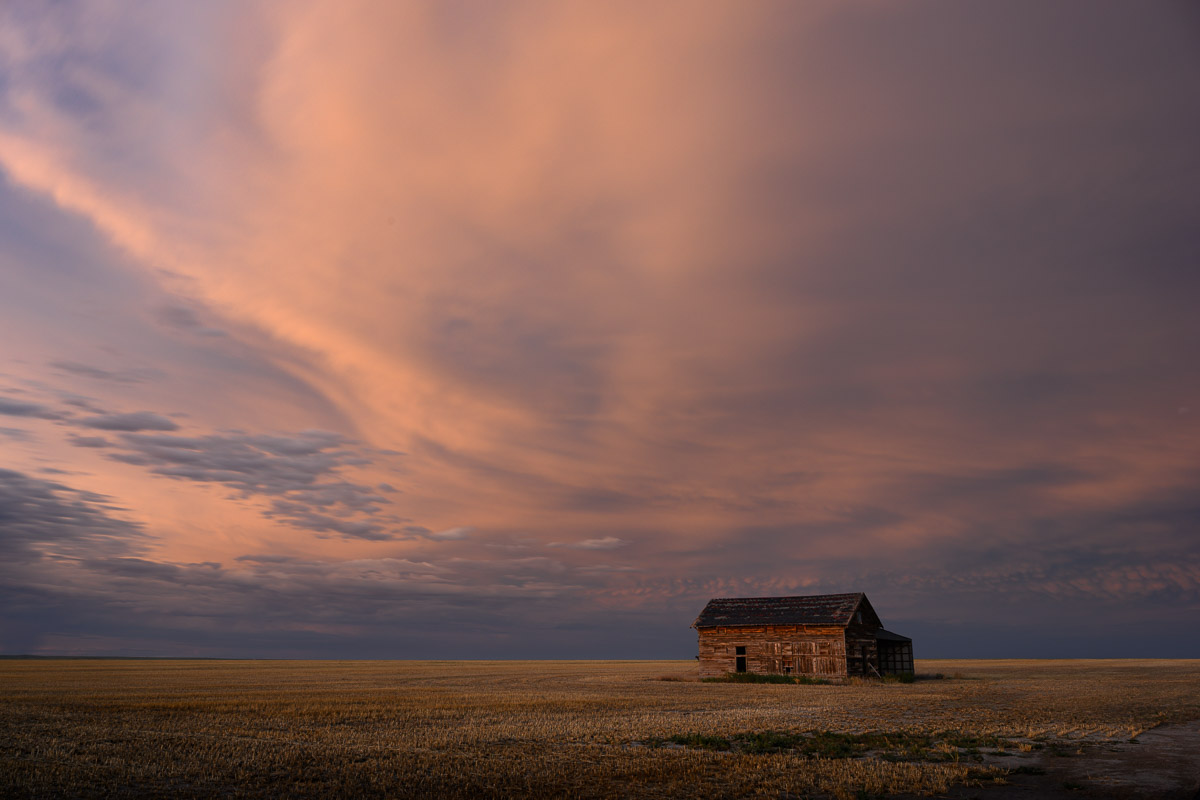
    Let me give a simple example. This is a somewhat randomly chosen image that seemed fairly typical of my keywording.

    Sunset, wide open spaces

    This image has 14 keywords currently. For the subject ones, it is identified as a cabin on the eastern plains of Colorado with interesting clouds. For the attributes that seemed important to me, it is a landscape, it is abandoned, it is made of wood, a sunset image, taken in summer, and showing an expanse of distance.

    The potentially most interesting are what I term housekeeping keywords. I use these to track important information that often has nothing directly to do with the image. An example for this one is that it is copyrighted. Yes, all of my images are copyrighted technically at the moment I take them, but this extra level signifies that the image has been filed and accepted for copyright by the United States Copyright Office. In addition it has keywords indicating the copyright registration number and date of grant. Other example housekeeping tags are that it is in my Select5 group, one of my highest ratings, and it is used in this blog.

    Why do it this way? Because I developed a system over time that works for me and is based on real needs that needed to be solved. I do not claim it is the only way to do things or that it is the best way. It is just the workflow I use. I encourage you to also adapt your tools and process to meet your needs rather than bending your needs to match the tools, or what someone has told you you should do – including me.

    Worth it?

    It is solely up to you to decide if it is worth it to you. It is to me. I often do searches to locate a particular image or a certain type of scene. The more identifying information I have, up to a point, the better. I also use smart collections sometimes to group together all images of a certain criteria. For example, I mentioned using a keyword for my selection level. I have smart collections that will show me, for instance, everything at select level 3 that has not yet been evaluated for possible promotion to level 4. This is a key part of my workflow.

    I always keep in mind what I termed the Goldilock effect. If my keywords are not adding value for me I will modify or abandon the process.

    These are your images and your process. Do what works best for you. But it is good discipline to enforce on yourself. I can say that if you go a long time ignoring something like keywording and decide later you should do it, it is a lot of boring work for a while.

    The tradeoff for me is that keywords are valuable for my work and useful for my processes. I will put in the effort to do it. Taking a little time to think about an image from several aspects like subject and attributes and housekeeping has benefits for me. It is one of the steps that ensures I am curating my valuable assets rather than just accumulating a big bag of pictures.

    Postscript

    A growing trend is software that attempts to analyze your images and automatically generate keywords. One new one I’ve seen is Excire. Another system I have seen described is fotoKeyword Harvester. I’m sure there are more. Lightroom itself agressively tries to get me to let it scan to identify people. It’s little brother, now named just “Lightroom” also automatically tries to keyword images. All this comes with the increasing penetration of so called AI technology.

    I don’t use these tools. As a matter of fact, I don’t trust them. All that I’ve seen will suck your images into “the cloud” for analysis. I have no sure way of knowing what will happen to them then. I am very protective of my rights and possession of my images.

    Yes, I may be a Luddite, but it is not entirely out of ignorance. I am a Software Architect who had done AI work and even developed practical applications based on some of its research. I have some idea of the downsides of using it.

    Besides, as I indicated above, my system is based on a network of keywords I have grown organically over a long time. I am not interested in some software system deciding to re-describe and re-interpret my image data.

    So for the foreseeable future, I will continue doing my keywording manually.

  • JPG vs. Raw

    JPG vs. Raw

    It seems like deciding on jpg vs. raw formats for our images is a problem for some photographers. I’m not sure why. Maybe it is lack of knowledge or maybe because it is sometimes discussed in almost mythological terms. Jpg and raw are just 2 ways of saving our images. Each is good for some things but there are tradeoffs to consider. It is just technology, not magic.

    Image formats

    When you take an image on your digital camera, each manufacturer has their own proprietary magic they do on the bits coming off the sensor. This lets them tune their image to meet their goals. If you shot the same scene with different cameras you would notice subtle differences – slight color balance differences, slight variations is tonal contrast, different handling of shadows and highlights, etc. These are usually small, but they give a camera it’s unique character.

    But we need to consume these pixels in our image processing software. So there needs to be standardized ways of storing the images and reading them in our computer. These are file formats. There are 2 main choices.

    Jpg is an industry standard format. The format is very widely understood and used. All images, once converted to jpg, are compatible.

    What we call raw files are really proprietary file formats created by different camera manufacturers. Image processing software, like Adobe Lightroom, has taken the responsibility to be able to read the files written by virtually all camera manufacturers. For instance, I shoot Nikon, so the images LIghtroom reads and handles have the “.nef” extension. Lightroom knows how to interpret this and convert it to editable pixels.

    The key thing here is that these raw files all contain roughly the same information, but are not directly compatible. Thankfully our software handles the differences gracefully.

    Technical details – jpg

    The term jpg, more precisely “jpeg” is derived from a standard created by the Joint Photographic Experts Group. The name jpg is an abbreviated acronym.

    The problem was that digital files are very large, this made them consume lots of disk space back when disks were small. It also used up lots of bandwidth transmitting them back when internet was slow and much more expensive (anyone remember dial up modems?).

    The jpg standard is based on some brilliant insights on human perception to allow encoding image files so they look good but are much smaller. The underlying principle is that humans are more sensitive to variations of tone (luminance) than they are to color (chrominance). The jpg processing reduces the luminance information and greatly reduces the chrominace data to acheive reductions of about 10x typically.

    In general, transforming an image to jpg is a multi step process. It involves a transformation where the luminance and chrominance information is separated. Then the chrominance information is downsampled, or reduced. Then there is a grouping of data into blocks and a process called discrete cosine transform is applied to the data blocks. This transformed information is quantitized and encoded. Finally the data is written out in a defined format as a jpg file. It is not at all necessary to know these details, just that the data in a jpg file is far removed from the original pixels that came from the camera.

    It is a lossy compression technique. Yes, it throws away a lot of data. This is one of the big tradeoff points of jpg. But a fringe benefit is that the image is made to look “nice”. The result is pleasing to most people without further processing

    Technical details – raw

    These files are called “raw” because they contain minimally processed data from the camera sensor. They are absolutely not ready to be viewed or processed. Some people describe it as a digital negative. Conceptually this is pretty good way to help us think about it, but it is not a valid description. The data is not negative and it is not viewable. It might be better to think of it as exposed but unprocessed film.

    To follow this metaphor, a raw image processor like Lightroom “develops” the image and makes it viewable and editable.

    Why raw? It captures and beings into the computer all the data that the camera sensor was able to record. It has the full range of color and tones. Nothing has been eliminated yet.

    In addition, the raw format has not had any lossy compression applied. Nothing is thrown away or reduced. Because of these things an image from a raw file requires manual editing to complete it. Sometimes a lot of editing.

    Tradeoffs

    So jpg is made small as possible and generally nice looking as soon as you see it. You can immediately look at it or send it to someone or post it to your social media. Yes, some information has been intentionally eliminated, but that is not important to most people. If you don’t notice it then it must not matter.

    On the other hand, if you want to make a large print of a jpg you may see noisy patterns that are euphemistically called “artifacts”. This might be mitigated with clever software, but your mileage may vary.

    And there is an editing danger you need to be aware of: every time you save a jpg file it goes through the transform process to reduce data. So every time you edit it and save it you lose information and introduce more artifacts. If you want to edit a jpg always save the edited file in a lossless format, like psd or tif.

    The raw files are usually very large. On my current main camera a typical raw file is 50-70 MBytes. A high quality jpg of the same resolution is around 4-5 MBytes. So, 10 to 1 or greater differential. And the raw files require an investment of time and training and tools to process them into a respectable state.

    But, and this makes up for everything, the raw file preserves every bit of information that we can wring out of the sensor. A modern sensor is marvelous and enables very aggressive processing. The raw format contains the full resolution of the pixels. It is not limited to 8 bit data like jpg. I often do things with the image data that I could not have envisioned when I took the original photo.

    Different needs

    When would you want to use one vs. the other? Well, if I was shooting a wedding I would probably use jpg. Say I come away with 3000 images. I would want to be able to scan through and see good views of all of them so I can quickly pick the 100-200 best to share with the client. If I did my job well the images should not need much editing. I would not have time to process this many raw files.

    Also, if I am shooting snaps of my family that is a time for jpgs. And if I was on vacation and just shooting travel photos for memories that is good jpg territory. I guess if my memory card was nearly full and I didn’t have a spare I might switch to jpg to keep shooting a few more frames. I try to prevent that from happening.

    For me, any other time requires raw files. It is my go-to choice. I know I want to process the images heavily. I am not afraid of the techniques. Given the choice I will always want to retain the maximum information and resolution possible. This given me the flexibility to make massive changes or change my mind and go back to re-process the image for a different look

    I tried to present a very neutral view of the tradeoffs of the 2 formats. I can sympathize that the choice is hard for some people. For me, it is straightforward. Use jpg if I am taking shots of people and I am confident it will need little processing. Otherwise, definitely raw.

    The image with this article is a jpg. It looks fine for this application.

  • Look Sharp

    Look Sharp

    No, I’m not giving advice on fashion trends. You probably wouldn’t want to follow my lead. But I can talk some about image sharpness. Photographers often obsess over getting the sharpest possible image. Today I want to give an overview of the factors that make an image look sharp and some that make it not sharp.

    Sharpness chain

    I described the transforms in the image capture process as the sharpness chain. Physically and logically there are several components that light has to go through before we have an image on our screen to view and edit. In may be more precise to describe this as the “unsharpness” chain, because unfortunately, every step along the way degrades the image to some extent.

    Digital camera loss of sharpness chain

    The original image is, by definition, “perfect” since it is the original. The light then goes through a filter (if you use one, I usually do), the lens itself, the Bayer filter to do color separation, the sensor chip, various processing stages in the camera hardware, and the raw conversion. I include the raw conversion here because the image is not editable until this has been done. There is no gain at each of these stages. This means that each stage degrades the image.

    This is not to be discouraging. Modern cameras and lenses are fantastic. “Fantastic” means they degrade the image less than ever before in history. This is not a bad state of affairs. If you are using excellent equipment all along the chain you can achieve some great theoretical results.

    Focus

    Oops, I said theoretical results. What I mean is that under perfect conditions the camera system can produce excellent results. But we may not always apply the best techniques when we are using the equipment. There are many things we can do to make the image sharpness worse.

    Focus, for instance. My eyes are getting old and weak. I usually rely on the camera auto focus system. And these do a great job now. But did I move the camera after focusing? Did I focus on the right part of the composition? Is the light level bright enough to allow the camera to work properly? Was it properly locked down on a good tripod to keep things rigid?

    Motion

    Another problem is camera shake. Pixels in modern sensors are so tiny that very little motion can smear light over several pixel sites. Yes, my camera has internal image stabilization, but this does not entirely compensate for bad technique.

    Way back in the film days we used a rule of thumb of 1 over the film speed to estimate the minimum shutter speed. That is, if using 200 ISO we should be able to shoot at 1/200 of a second and be able to maintain adequate sharpness. Sensors are so fine pitched now that I think the rule should be around 2-3X the ISO to be conservative. So at ISO 200 I should probably shoot at 1/400 to 1/800 second handheld to get good results. Best to always use a sturdy tripod.

    Another common problem is subject motion. This is when the subject is moving relative to the frame during the time the shutter is open. If the subject is moving “enough” you end up with a blurry streak. If this was not the intent you were after, it is an error caused by bad technique. You have to get the shutter speed up enough to “freeze” the subject.

    It is an internal fight with me to make myself raise the ISO speed enough to get the shutter speed I need. I have years of history that images were too noisy unless I stay down around 100 ISO. But with modern cameras it is much less of a problem. My default ISO is usually 400 now. I know that I can go to 3200 and still get good results in many situations. I just have to make myself do it. When I don’t I often get blurry images.

    Diffraction

    One of the things we worry about a lot is depth of field (DOF). This is sort of an illusory concept. It is an attempt to quantize how much of the area from foreground to background is in focus. The reality is only a very small slice is actually in focus. But DOF describes how much is in “acceptable” focus. But acceptable varies with taste and application. There is no official definition of DOF.

    One way we try to cheat the system is to stop the lens down more to increase DOF. It sort of works. It seems to work. But it is not free. Going to a 2 stop higher f-stop number, like f/16 instead of f/8 means that you are letting in 1/4 the light (it’s logarithmic). It also means you are incurring diffraction effects.

    Diffraction is a complex phenomenon. I will just say that at physically smaller apertures (say f/16 and smaller) the perceived sharpness of your image decreases. So don’t just automatically slam your aperture to f/32 to always maximize DOF. It has downsides. Most lenses have a “sweet spot” around 2-3 stops down from the widest aperture. If you have a great f/2.8 lens it probably has optimum sharpness at around f/5.6 to f/8.

    Diffraction is a real phenomenon of physics and I see it all the time. Don’t let me scare you, though. It is one of the tradeoffs. As an experiment sometime put your rig on a tripod and shoot a spread of the same scene at, say, f/5.6, f/8, f/11, f/16, and f/22. Don’t change the focus point. When you examine the images on your computer at at least 1 to 1 size you will see a fall off of sharpness at f/16 and smaller. On the other hand, the perceived DOF increases at the smaller apertures.

    Trading off DOF and diffraction effects is just one of those balances that photographers have to be able to make automatically. It’s all an artistic judgment. No right or wrong.

    Sharpening

    Regardless of how good or bad your equipment and technique is, at the end of this chain you are now in your computer looking at the image. What can you do?

    First off, expect your image to look blurry when you first view it. What?? I paid thousands for this equipment and it makes blurry images? Yes. if you shoot raw images (always shoot raw unless you have a very good and specific reason not to), almost no processing has been done on it when you first see it on screen.

    All those steps in the sharpness chain guarantee that is seems less sharp to you than you expect. Don’t worry. If you have done your job well you have good data to work with. We can do wonders to increase the perception of sharpness.

    It is the “edges” in your image, the transitions from darker to lighter, that give the perception of sharpness. We have many tools and techniques these days to increase the contrast of these edges.

    Lightroom tools

    If you work in Lightroom, as I do, (or Camera Raw, the equivalent) the Presence section has 2 magic tools: Texture and Clarity. Clarity is a bigger hammer. It increases edge contrast overall. It can really make an image seem to pop.

    Texture is fairly new. It is kind of like Clarity, but gentler and more selective. Increasing Texture concentrates on mid range edges. That is, it ignores the most contrast and least contrast edges and enhances the middle ones. This is a subtle and more fine-grained control. It is a welcome addition to the tool kit.

    Then for finishing an image there are the traditional Sharpening controls in the Detail section. This lets us tune the overall effect by controlling the amount, radius, and detail of the sharpening while being able to use the mask control to adjust the area it is applied to.

    These Lightroom controls are often all that is required to achieve great perceived sharpness. The more I learn the more I am able to completely finish many images using only Lightroom.

    Photoshop tools

    Your workflow or preferences or image needs may take you to Photoshop, the traditional big gun for image processing. There are several tools and techniques that can be used to increase perceived sharpness.

    My go-to tool for Photoshop sharpening is the Smart Sharpen filter. This gives marvelous results and lots of control. It even effectively lets us use Blend-If to selectively fade the sharpening application to highlights and shadows. It is a great tool. And yes, you can go crazy and make the image look horrible, too.

    Another traditional filter is Unsharp Mask. I won’t try to explain why blurring can cause the image to look sharper. It is one of the great mysteries of photography. Maybe a future article. Anyway, this is a software simulation of a technique used by film people to increase sharpness of their prints. It works well. It has somewhat less control than Smart Sharpen, but it is good.

    Then there is the HIgh Pass filter. You almost have to be an engineer to understand the concept, but basically it increases the contrast of the tones at edges to make the image look sharper. It is a very old tool, but it works great for some things.

    There are many possibilities in Photoshop, but I will stop with the Sharpen tool. It is a tool, not a filter. It is brushed on. This lets you brush a sharpening effect very selectively where you want it. It works, but be careful. It is a destructive tool.

    Perception is reality

    There are many options to use and most of them can be combined in various ways to meet your needs. But in the discussion, I kept talking about the “perceived” sharpness. This is the reality of our imaging world. All those stages in the sharpness chain lose quality. The operations we can do in software can make our image look very good. But all these tools we use are trying to simulate what the original scene or our creative vision looked like. All operate on the principle of enhancing edges to make the image look sharper.

    These operations do not actually make the image sharp. They make it appear sharp to the viewer. Maybe it is too fine a distinction. For most of us, all we care about is that it looks good.

    If an image is actually out of focus or blurred badly from camera shake or subject motion we cannot make it perfect. Yes, AI is getting better all the time, but it can’t really make something out of nothing.

    The good news is that these days we have excellent tools for controlling perceived sharpness and making our images almost as sharp looking as we wish.

  • Pixel Damage

    Pixel Damage

    Our images are precious. They are our vision, our creation. We need to treat them with care. Photoshop makes it too easy to damage your pixels. But with some training we can learn to avoid the damage.

    Photoshop and Lightroom Classic are the main editing tools I use and am familiar with. I acknowledge that there are other good tools, but I don’t use them. LIghtroom (I will just call it Lightroom because I think Adobe’s branding scheme is dumb) has the distinct advantage of being totally non-destructive. It is impossible to do any edit on a RAW file that damages or destroys the original pixels. This is a huge win.

    Unfortunately LIghtroom does not have the ultimate power and fine-grained control of Photoshop. So it is often necessary to take images into Photoshop to finish them. But Photoshop is a power tool. As with most any sufficiently powerful tool, it can be dangerous, even magical. I still see instructors training people to edit in ways that damage pixels. This is counter productive and seldom necessary.

    Photoshop can do any amount of damage you want to an image

    I love Photoshop. It is one of the finest pieces of software I have ever used, and I speak as a long time software architect and developer and long time Photoshop user. But is is dangerous. It will freely let you do anything you want to an image.

    Many of the tools in Photoshop operate directly on pixels. You can edit, delete, modify, blur, sharpen, recolor, or paint on your pixels. These operations are destructive after saving and closing the file. That is, you can never get back to the original pixels.

    This amazing power is a two-edged sword. It gives you total freedom to do anything you can imagine, but you can find out later that you cut off your foot in the process. I have images that have been severely damaged in the past because of a lack of sophistication in my editing techniques. I destructively modified the original file and saved it. Even though I have better knowledge and technique now, I cannot go back to start over with the original data.

    If you use Photoshop seriously you are continuously learning new and improved techniques for doing your work. This means you sometimes change your mind and want to go back and modify images you have worked in the past. But if you have painted yourself into a corner because of poor technique, you may not be able to do that.

    I hope to encourage you to learn that there is a better and safer way. One that lets you do anything you want in the confidence that you can change or modify anything in the future.

    Non-destructive editing

    Non-destructive editing is a holy grail of many of us who use Photoshop heavily. It is based on some fairly simple principles that are easily learned. It works very well, is no harder to do, and leaves us able to change our mind about an image any time in the future.

    This is not a Photoshop non-destructive editing tutorial. It cannot be in a short blog. I hope to motivate you to consider a more powerful way of using the tool and give you a few hints of what to pursue in your training. Dave Cross is a great instructor to learn from, as is Ben Willmore. They both have their own tutorial programs or catch them on CreativeLive.

    So here is the quick cheat sheet: use smart objects, adjustment layers and blending modes. Avoid stamps, layer merge, erase, rasterize, and flatten. There, all you need to know. 🙂

    Avoid these

    I suggest you should avoid using stamps, layer merge, erase, rasterize, and flatten. Probably I hit one or more of your regular tools. Sorry. But every one of these permanently commits the edit state. Each one is unalterable once you save your file.

    If you go back to your image a few months later and decide you had too much contrast in a certain area it is very hard to change it. You have to re-select, re-mask, try to make the changes without damaging the rest of the pixels. You are also doing a whole new edit and the result has now permanently changed the pixels to be the way you see the image right now. A few months from now…

    The Stamp specifically

    A favorite technique in many workflows is the stamp. You know, the “hold down the entire left side of the keyboard and E command. This is not the same as the clone stamp tool. The stamp avoids the problems of destructive edits, right? Well, sort of. Yes, it builds in “frozen” points that capture all the edits in an image below it and allows changes without destroying the underlying layers. That is good.

    I hope to convince you you can do better, though. The stamped layer is a roadblock in the editing flow. It marks a point where you can’t go back. When you inevitably decide to edit a layer below the stamp the edit is not reflected up to the stamp and above. You have to delete the stamp layer, recreate it then try to remember what you did to it before and re-make those edits. You may or may not remember what all you did. Adopting a non-destructive workflow avoids this problem.

    Another issue with the stamp is that it makes a copy of all your pixels. File sizes are growing almost unmanageable and the stamp makes it worse. I have many files that must be saved as psb format because the size exceeds the 4GByte limit of tiff. Large file sizes make for slower file open and save, slower editing, the need for lots of RAM, and the requirement for lots more disk space (plus all the backups; you backup religiously don’t you?).

    Use these

    Some things to get in the habit of using are smart objects, adjustment layers, and blend modes. Getting comfortable with these powerful techniques can have a dramatic effect on your editing. A major characteristic of all of them is that their settings can be modified any time and they do not alter pixels, just the way they look.

    Smart objects are your friend. They allow you to wrap a certain state of an image in a container and use it non-destructively. That is, it is in a protective bubble that prevents any operations from the outside that damages its contents. And the smart object can be opened and edited in any way at any time in the future. So it can be changed at will. All edits to a smart object automatically flow back into the file you are using it in. Sounds like magic. Until you get comfortable with them, it kind of is. Good magic.

    Adjustment layers are a simple concept that has been in Photoshop a long time. The subtlety is that there are adjustments that alter pixels but there are also adjustment layers that put a transparent sheet over the image and do their changes to that. Always use the adjustment layer. It is lightweight (doesn’t make a copy of the pixels), can be changed at any time, and can have a mask to restrict its effect to selected areas.

    Blend modes come in 2 types, the blend modes on a layer or brush and the blend-if controls to feather things between layers. I don’t have the space to go into them, but they can have a very beneficial impact on your editing. And they are forever changeable. And they do not grow your file significantly. All good things you will like.

    Don’t paint yourself into a corner

    This non-destructive workflow is all about not painting yourself into a corner (sorry if that is an American idiom that doesn’t translate well). It means not trapping yourself down a path you cannot recover from, a position where you cannot escape. This flexible way of working allows you go go back to any stage of your work and make changes. If you need, you can even strip off all the edits you have made and start over from the original pixels. Everything is preserved.

    No more unrecoverable originals.

    When you get comfortable with this way of editing you will not go back. For me, when I consider doing something that permanently alters pixels something stops me. It feels dirty or wrong. I can always find a non-destructive way to accomplish what I want and it is just as fast and easy.

    I find that when I come back to an image after a period of time I often want to make changes. Sometimes small tweaks but sometimes a complete reinterpretation of what I want the image to be. A non-destructive workflow allows me the freedom I want to be able to do this. And I never go down a path I cannot recover from.

    I consider that working in this way is a sign you are well on your way to Photoshop mastery, if there is such a thing.